
How It Works · Meal Planning
From “What are we eating?” to “We’ve got this.”
Plan tomorrow morning, the entire week or further ahead. Adaptive Kitchen works around the way your household already cooks, shops and changes plans.

A quick tour
See Meal Planner in Action
See how recipes, servings, sides, shopping needs, nutrition, and Chef guidance come together in one flexible meal plan.
2 minutes 25 seconds · English captions included. Press play to watch with narration. Use the speaker control to adjust or mute the sound.
Read the video transcript
A meal plan should fit your life and help everything else fall into place.
With Adaptive Kitchen, your recipes,
servings,
pantry, and shopping needs, work together so planning dinner becomes part of one connected experience.
Start with a recipe you love, choose schedule, select your date and meal slot,
and adjust how many servings you want to prepare.
Your meal appears in the planner, ready for you to build around it.
Move between days with a click or browse another week using the arrows.
Each selected day gives you a clear view of what's planned.
Adding another meal is just as simple.
Drag a recipe from your Recipe Bank into a meal slot or use the plus button to search and choose.
Want more than one side?
Add your favorites and link them to the main dish, keeping the whole meal together.
And every slot doesn't need a recipe.
Add leftovers or create a custom entry for plans like dinner with family.
As your plans take shape,
the shopping panel helps you look ahead.
Choose one day, three days, or the week to review what's covered,
what's already on your shopping list,
and what still needs your attention.
Open shopping needs for a closer look.
Then choose the items you want to add.
For another perspective,
review the days available nutrition information.
Compare one serving of each recipe with all the portions you've planned,
with missing information clearly identified,
and you don't have to work through every detail alone.
Ask the Chef about your planned meals for a selected day or week,
bringing your menu and available pantry information into the conversation.
The shared coverage calculation finds heavy cream, crème fraîche covered from tracked pantry stock.
It also asks you to check several items rather than assuming they are available in usable amounts.
Shopping coverage,
six relevant needs are already represented on your shopping list,
including potatoes,
salsa verde, lemon juice, garlic,
parmesan pecorino, and diced green chilies.
For a quick introduction to an individual meal,
tap its green Chef hat, and listen to a helpful preview.
Tangy, mild salsa verde, green chilies, and sweet corn make a creamy southwestern- style chicken dinner with minimal hands-on work.
The two-serving batch provides dinner plus one leftover portion.
When it's time to catch up, Meal Check-In lets you mark a meal cooked,
move it to another date, or record that it wasn't made.
From the first recipe to changing plans,
Adaptive Kitchen helps you stay organized while keeping the choices yours.
Big picture or today
Plan the week. Focus on the day.
Week View shows the rhythm of the household. Select a date to review that day’s meals, sides and nutrition. Day View gives you room to focus on the details. Both views use the same plan, so there is nothing to rebuild when you switch.
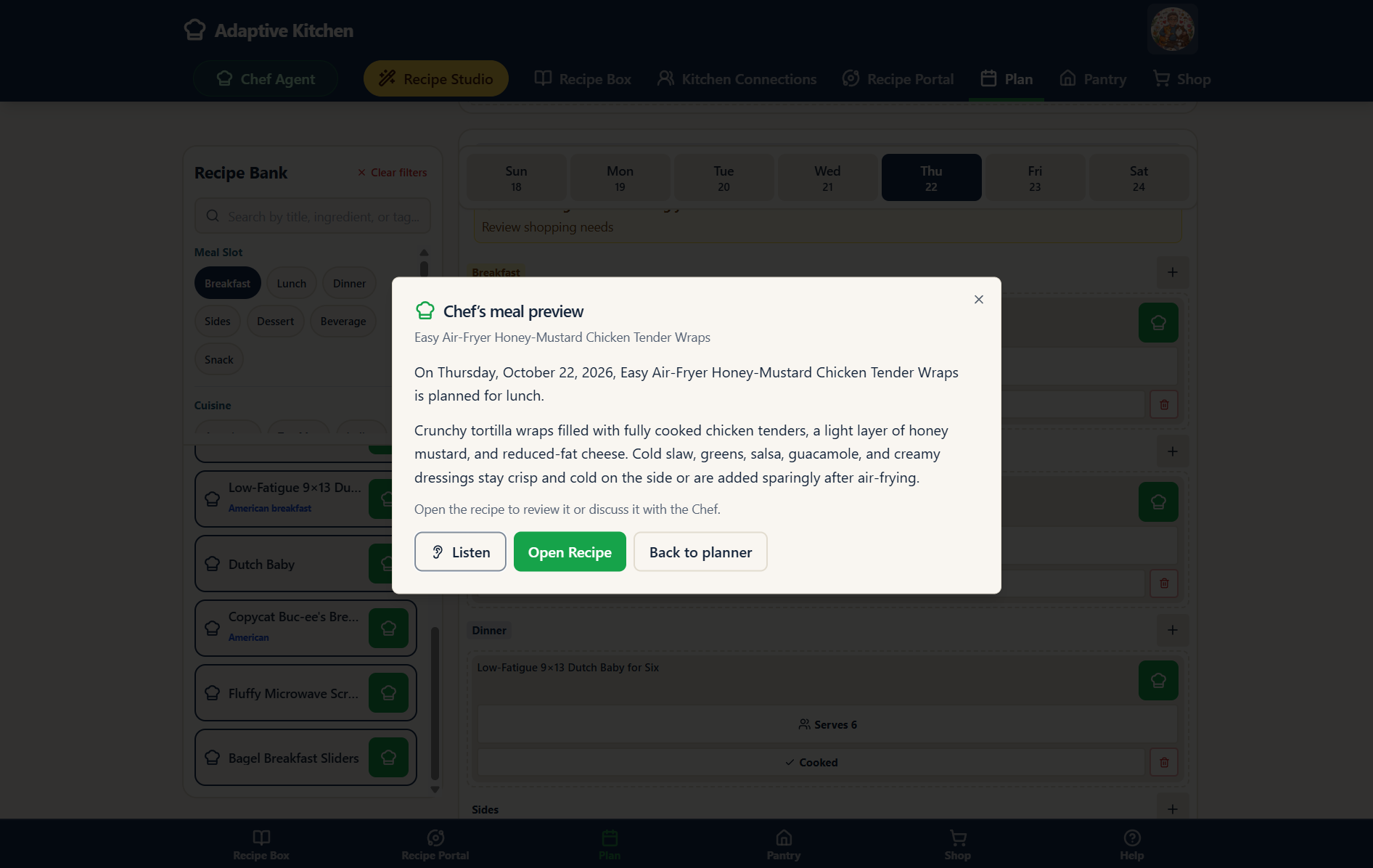 Chef preview · Review the mealEnlarge screenshot ⤢
 Schedule · Choose the date and portionsEnlarge screenshot ⤢
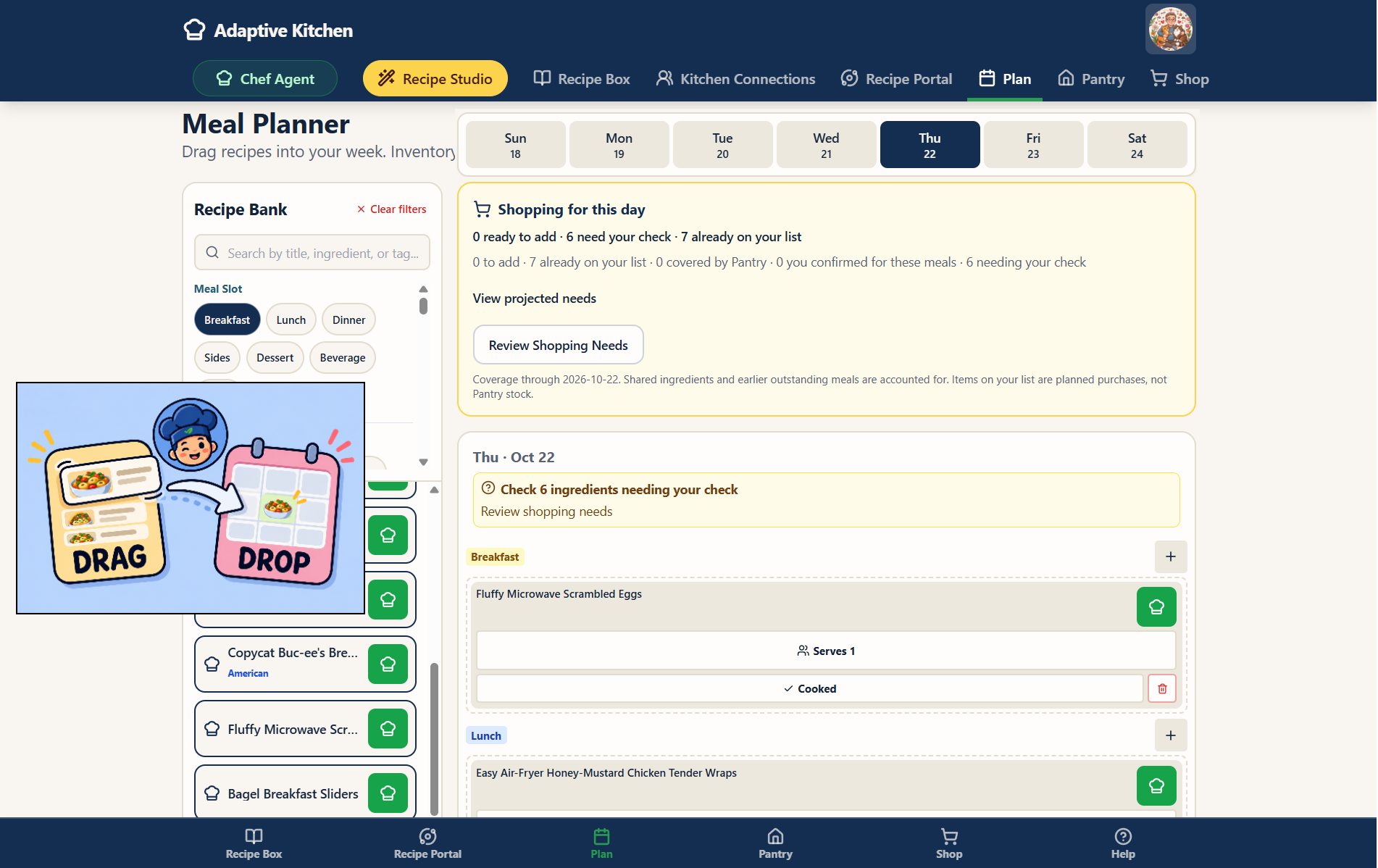 Day View · Focus on todayEnlarge screenshot ⤢
Your week at a glance
Start with the week. Scroll through each day.
Review shopping needs at the top, use the date strip to jump to a day, or scroll through the week’s meals. Keep the Recipe Bank alongside your plan as you organize each day.
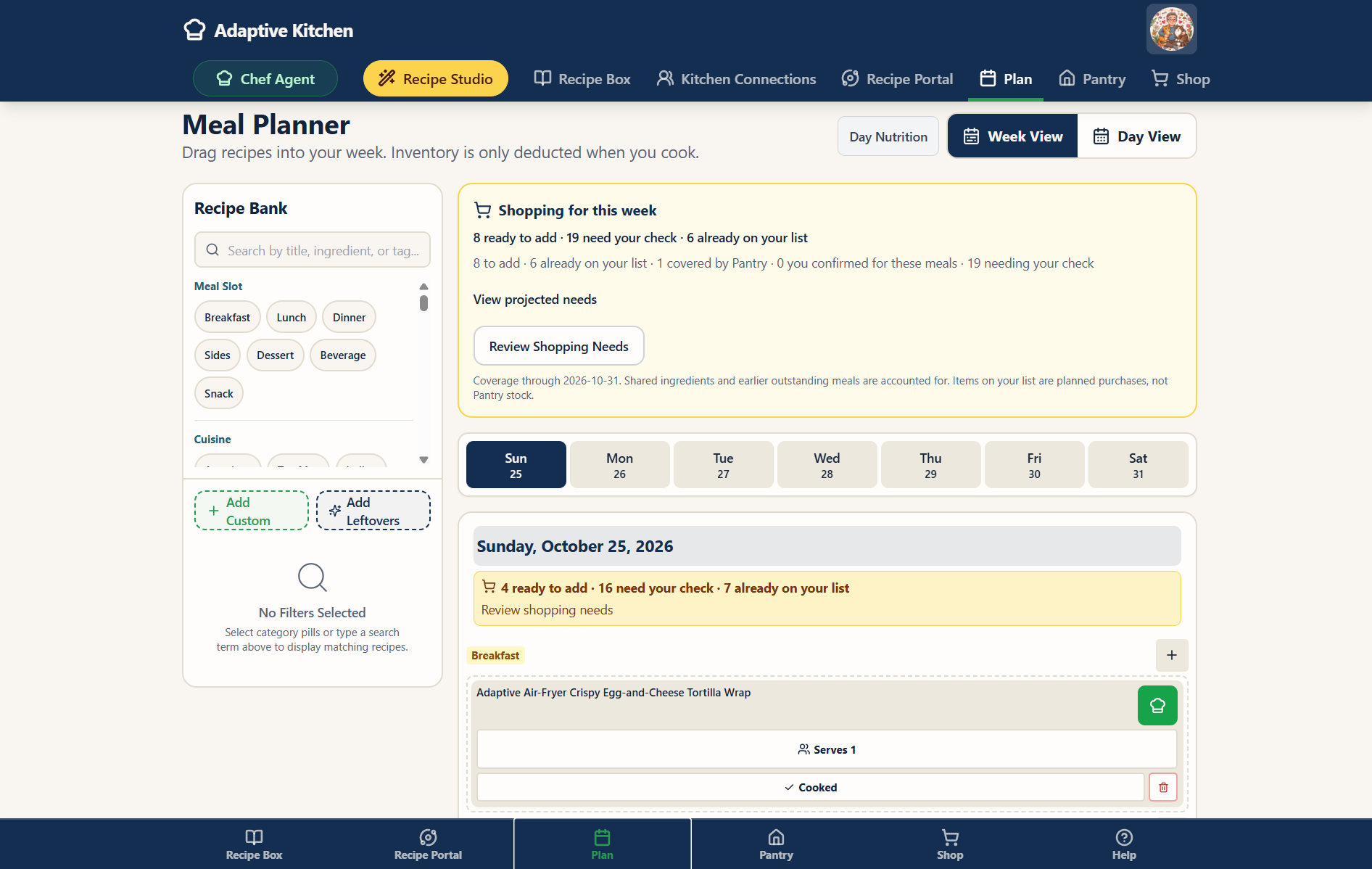
Recipe to calendar
Found dinner? Put it on the calendar.
Choose Schedule from a saved recipe or use the Recipe Bank beside the planner to drag a recipe into a date and slot. Choose the servings you plan to prepare. The recipe stays connected to its ingredients, cooking instructions and available nutrition.
Choose a saved recipe, or import a discovery result before planning it.
Choose when you actually expect to make it.
Choose the appropriate slot and planned servings, then review before saving.
Already have something planned? Review the existing meal before choosing whether to replace it or save the new dish alongside it. You can also go back and choose another date.
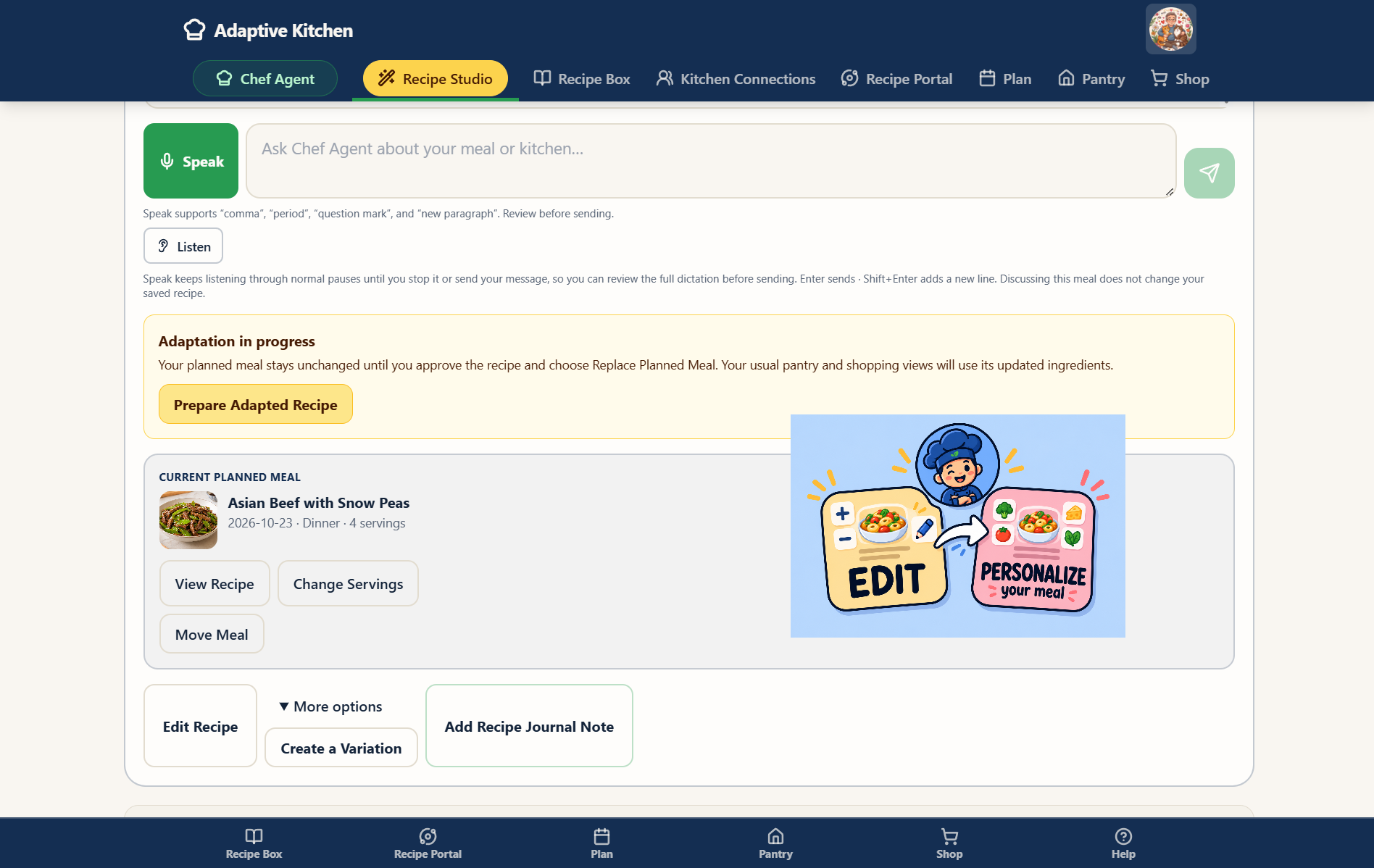
Real life belongs on the calendar
Plan the day you’re actually going to have.
Breakfast at home. Leftovers for lunch. Dinner out with Mom and Dad. A useful meal plan should reflect the way people really eat — not force every square on the calendar to contain a recipe.

Choose a recipe from the Recipe Box.
Drop in Leftovers when yesterday already solved today.
Add a custom plan such as dinner out.
The day makes sense without pretending you cooked every meal.
Not every meal needs a recipe. Every meal can still belong in the plan.
Build the whole meal
One main. More than one great side.
Plan the chicken and the dishes you want with it. Add multiple sides, then pair each one with a breakfast, lunch or dinner that is already planned for that day.
Use the Sides plus button
Choose a side and assign it to a planned meal from the pairing drop-down. Add another side when you want more than one.
Drag from the Recipe Bank
Drag a saved side recipe into the Sides area, then choose the meal it belongs with. The same pairing rules apply in Day View and Week View.
Keep the meal together
Sides are grouped by breakfast, lunch and dinner. Pairing lists show the meals planned for that date; a side does not get another side, and neither do snacks, desserts or beverages.
An example dinner plan
Chicken with mushrooms
Planned side: Green beans
Planned side: Mashed potatoes
Illustrative meal names. Saved side recipes contribute their ingredient needs and available nutrition. A custom side such as “salad” can still appear in the plan, with nutrition shown as unknown.
Need inspiration? Explore compatible sides from a main recipe, review the suggestions, then save and schedule the ones you want. See how recipes and discovery work →
Works around your routine
There is no single “right” way to meal plan.
Weekly shopper
Plan several days at once and understand what those meals will require before the weekly store trip.
Day-by-day cook
Check tonight’s meal on the way home and see whether a store stop is actually necessary.
Prep-ahead household
Plan tomorrow’s slow-cooker meal tonight so morning prep is already decided.
Caregiver-supported
Choose the meals while a trusted helper supports shopping or cooking through the Kitchen Connections access you grant.
Adaptive Kitchen organizes the way you already cook — and makes it easier.
Connected planning
Know what tomorrow requires.
When Pantry and Shopping are enabled, planned recipes and their sides contribute to the same projected-needs calculation. Review the selected day or date range to see what tracked Pantry stock covers, what is already on your Shopping List, and what still needs attention. Compare the same dates across views for a consistent picture.
Scheduling is planning — not consumption. Putting a recipe on the calendar does not mean the ingredients have already been used. Tracked Pantry quantities are updated when you confirm that you made the meal and review the cooking details, not merely because plans were made. Changing the plan recalculates projected needs without pretending you used the food.

One connected picture
What you have. What is listed. What still needs a check.
A projected need is a planning suggestion, not an extra item already added to your list. The planner, Pantry and Shopping work from the same meal needs while keeping real inventory separate from shopping intentions.
| What you see | What it means |
|---|---|
| Pantry coverage | Tracked food already on hand can cover the planned amount. Planning across several meals considers how much is available across those meals. |
| Already on your list | You intend to buy it. It is not Pantry stock until the purchase is confirmed and recorded. |
| Still to add | A remaining projected need has not yet been covered by tracked stock or an appropriate Shopping List quantity. Review it before adding it. |
| Check on hand | The amount, exact ingredient or possible substitute needs your judgment. Choose “I have this” for the current preparation, or add what you need. This does not silently create Pantry stock. |
Stay in control of tracking. Pantry and Shopping can be enabled separately. Per-item Meal tracking choices also matter: food you are not tracking is not treated as a confirmed shortage simply because the app does not have an exact quantity. A fresh, frozen, canned or dried alternative may need a check rather than being counted as an exact match.
Choose Review shopping needs for the planned day to continue into Shopping with that day’s projected needs. Nothing is purchased merely because it is listed or projected.
Nutrition across the day
See the bigger nutritional picture.
Use the day’s nutrition button near the top of the planner to open a clear summary of the selected date. See each planned meal and its sides, with available calories and macronutrients, followed by a combined total. Select another date in Week View to review that day instead.
Unknown stays unknown. Leftovers, dining out and custom entries remain visible with unknown nutrition. Missing values are not counted as zero. The total adds the available numbers, so it is a known subtotal when some information is missing.
If a saved recipe is missing nutrition, use its USDA recalculation option where available, then review the result. Nutrition values are estimates; a custom note does not become a calculated recipe simply because it is scheduled.
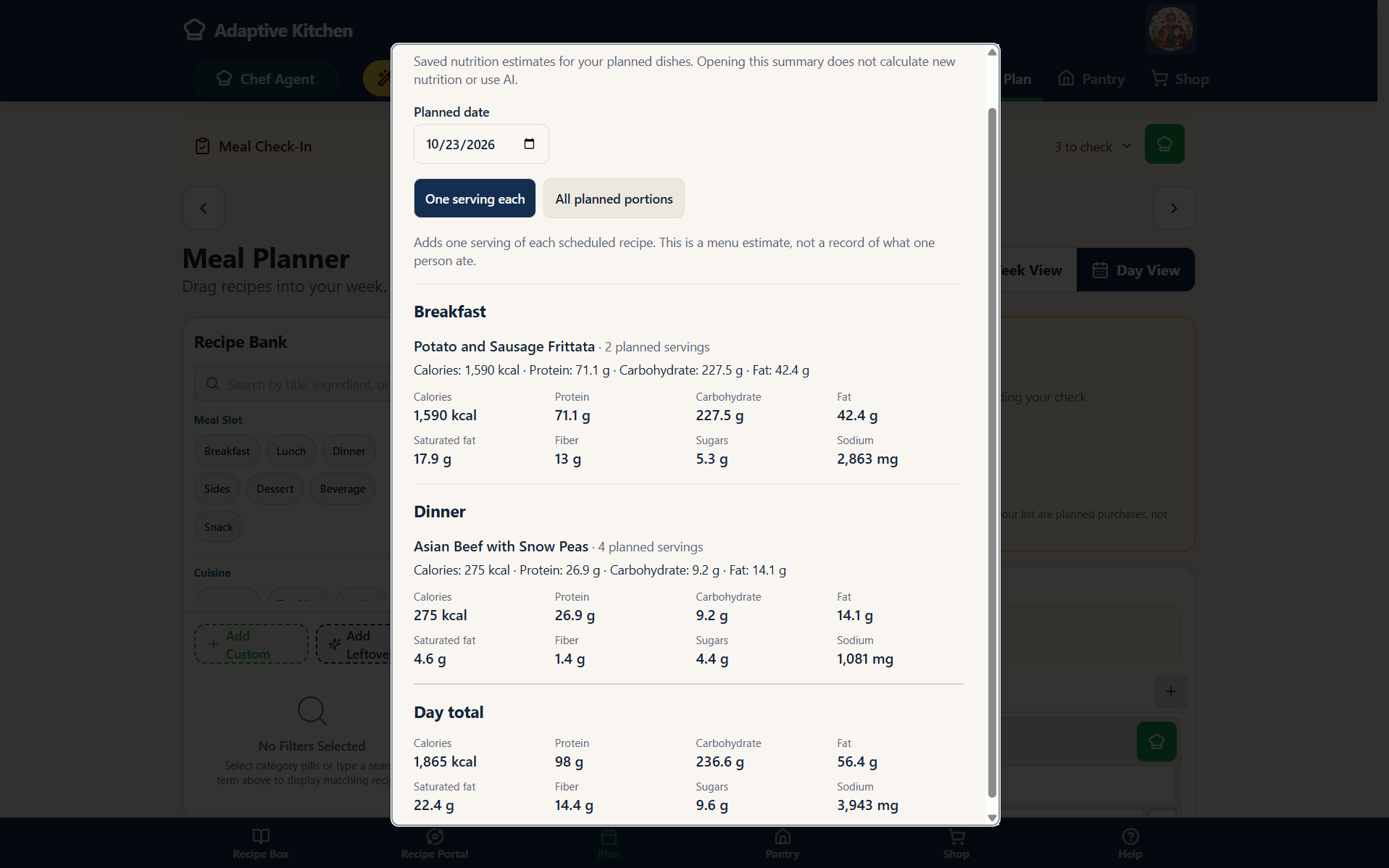
Review saved nutrition estimates for the selected date, with one serving of each recipe or all planned portions. These are menu estimates, rather than a record of what one person ate.
View full-size screenshot ↗A little help with the plan.
Use the green Chef Assistant button at the top of the app for help with the planner and how it connects to your kitchen. The small green Chef hat beside a planned meal offers a short overview of what is scheduled.
From there, open the recipe when you want to review its ingredients, directions or focused cooking help. Speak or type your questions, listen to the response, or read quietly using your voice settings.
Ask about your day
- Review the meals and sides planned for the selected date.
- Understand known nutrition totals and any unknown entries.
- Explain projected needs, Pantry coverage and items already on the Shopping List.
- Learn how to add another side, move a meal or understand a check-in.
Chef help explains the plan. Ask for guidance whenever you need it, then review the actual meal or shopping controls before making a change.
Plans change. Your kitchen can keep up.
Check in when the meal is over.
The meal check-in banner helps you resolve planned meals that still need an answer. Confirm what happened so yesterday’s plans do not keep getting in the way of today.
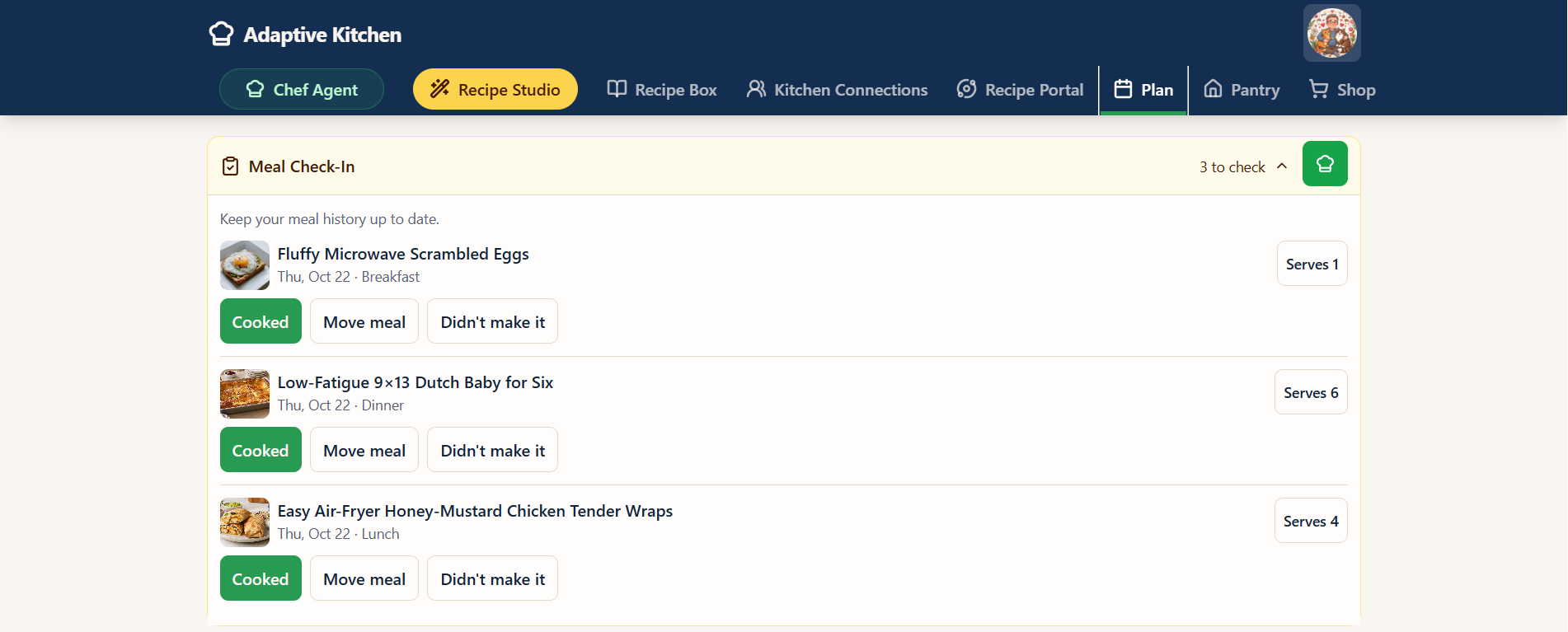
Made it
Confirm that you cooked the meal and review the actual servings. Eligible tracked Pantry quantities can then be updated through the cooking workflow.
Move it
Choose another date when the meal is still on the menu. Its projected needs follow the updated plan.
Didn’t make it
Remove the unmade plan rather than leave it waiting in the calendar. Its projected ingredient demand is released; food you already have remains in the Pantry.
Items already added to the actual Shopping List are separate from projections. Review any shopping cleanup choices before removing them, especially when another planned meal also needs the same ingredient.
Questions
Meal Planner FAQ
Meal planning looks different in every household. These answers explain how Adaptive Kitchen keeps the calendar flexible while staying connected to recipes, Pantry and Shopping.
Can I switch between daily and weekly planning?
Yes. Both views use the same schedule. Week View helps you see the week, and selecting a date lets you review that day’s meals, sides and nutrition. Day View gives the same plan more room.
How do I add a recipe to the Meal Planner?
Choose Schedule from a saved recipe and select a date, meal slot and servings. You can also use the Recipe Bank beside the planner and drag a saved recipe into the appropriate place. Save an online discovery result to your Recipe Box before scheduling it.
What if that meal slot already has something planned?
Review the existing plan before deciding whether to replace it or save the new dish alongside it. This lets you keep several dishes for a gathering without accidentally replacing an ordinary weeknight meal. You can also choose a different date.
How do I plan more than one side?
Use the Sides plus button, or drag a saved side from the Recipe Bank into Sides. Pair each one with a breakfast, lunch or dinner already planned for that day. Repeat to add another side. The pairing choices show planned meals for that date, in meal order; sides are not paired with sides, snacks, desserts or beverages.
Do all meals and sides have to be saved recipes?
No. Add custom entries such as leftovers, dinner out or a simple salad. They belong in the plan, but without a connected recipe they do not create an ingredient list or calculated nutrition. Their nutrition appears as unknown rather than zero.
Does scheduling a recipe remove ingredients from my Pantry?
No. Planning does not consume food. Eligible tracked Pantry quantities are updated through the cooking workflow when you confirm a meal was made and review the actual servings. Moving or removing an unmade meal changes projected demand without consuming the ingredients.
How do the planner’s needs connect to Shopping?
With the relevant tools enabled, the planner compares scheduled recipes and sides with tracked Pantry stock and appropriate quantities already on your Shopping List. Review shopping needs takes you to the selected day’s projected needs. Projections are separate from the actual list, and adding an item to that list does not mean it has been purchased.
Why does something say Check on hand instead of Missing?
The app may know the ingredient is present without knowing the amount, or it may have found a possible alternative such as frozen vegetables instead of fresh. Check the item before deciding. “I have this” acknowledges it for the current preparation; it does not silently create Pantry stock or permanently cover every future use of that recipe.
Can I use the planner without Pantry or Shopping?
Yes. Those tools can be enabled separately, and you can still plan meals without maintaining both. When you do use Pantry, per-item Meal tracking choices determine what stock is authoritative for meal calculations. Untracked items are not automatically treated as confirmed shortages.
What does the daily nutrition total include?
It adds the available calories and macronutrients for the selected day’s recipe-based meals and sides. Custom entries remain visible with unknown nutrition. Missing values are not treated as zero, so the displayed sum is a known subtotal if some meals or nutrients are unknown. Review recipe nutrition or use USDA recalculation where available when information is missing.
Does the planner currently monitor nutrition goals for each household member?
The current daily summary shows available nutrition for the selected plan. Individual household nutrition profiles and goal comparisons are a separate future direction; the concept image above is not the current daily nutrition screen.
What should I do when a planned meal was not made?
Use the meal check-in to move the meal if you still intend to make it, or choose Didn’t make it to remove the unmade plan. Its projected needs change accordingly. Existing Pantry stock remains yours, and items already on the actual Shopping List need their own review.
What happens if I delete a recipe that is planned?
Review the deletion warnings and the choices for its scheduled meals before confirming. Removing those plans releases their projected ingredient demand. Any cleanup of already-added Shopping List items is a separate choice, and deleting a recipe must not delete food from your Pantry.
Can the Chef explain the plan and its sides?
Yes. Open Chef Assistant for help with the selected day, including planned sides, nutrition and the relationship between Pantry and Shopping. The small Chef hat beside a meal gives a short overview. Open the recipe for deeper ingredient or step-specific help.
Is this only for people who plan a whole week at once?
No. Plan one meal, work day by day, or organize the week before shopping. Prep-ahead meals, leftovers, dinner out and changes of plan can all fit into the same calendar.
Can a family member or caregiver help while I choose the meals?
Kitchen Connections supports trusted help through the access you choose to grant. Sharing a recipe by itself does not share your Pantry, Shopping List or calendar. Review the relevant helper permissions when you want someone to help with your kitchen.
Know what you’re making. Know what you have. Know what you still need.
The Meal Planner becomes even more useful when it connects with Pantry and Shopping.
Explore Pantry & Shopping →Adaptive Kitchen. Cooking within reach.