How It Works · Kitchen Connections
Your kitchen. Your choices. Your circle.
Kitchen Connections makes it easier to involve family, friends and caregivers while keeping the person at the center of the kitchen in control of what sounds good, what gets shared and what kind of help is welcome.

A quick tour
See Kitchen Connections in Action
Share recipes, plan a gathering and welcome practical kitchen support, with you in control of what you share.
2 minutes 35 seconds · Narration, original Chef audio and explanatory captions included. English captions are available in the player. Press play to watch with sound; use the speaker control to adjust or mute it.
Read the video transcript
Good food brings people together. A favorite recipe, a holiday gathering, or an extra pair of hands can make the kitchen feel more connected.
Kitchen Connections gives those moments a place in Adaptive Kitchen, with you in control of what you share.
Start in People. Find a member who has enabled name discovery, or invite someone by email or secure link.
Choose a friend, household member, or care team relationship. The other person reviews the invitation before you connect.
A connection does not automatically open your private kitchen. You choose when to offer additional help.
Through Helper Access, invite someone to view your meal plans, your Shopping List, or both. They review and accept those permissions before access begins.
A family member, friend, or caregiver can use those views to help shop for you or cook your meals, while you choose what you want to eat for the week.
The app access is view-only, and you can change or revoke it. Practical support can fit around your choices.
Sharing a favorite recipe is just as straightforward. Open a saved recipe, choose Share, and select a Kitchen Connection.
The recipe arrives in their Shared Recipes. They can view it and save their own copy to personalize, plan, and cook in their own kitchen.
For a meal that brings several people together, open Cooking Circles.
A circle can be an ongoing group or a dated event, like Thanksgiving dinner. Its members share a space for the gathering while keeping their own kitchens separate.
Build a shared menu with saved recipes, dishes, or practical tasks, such as bringing ice or drinks.
Members can claim what they will contribute, so everyone can see who is taking care of each dish or task.
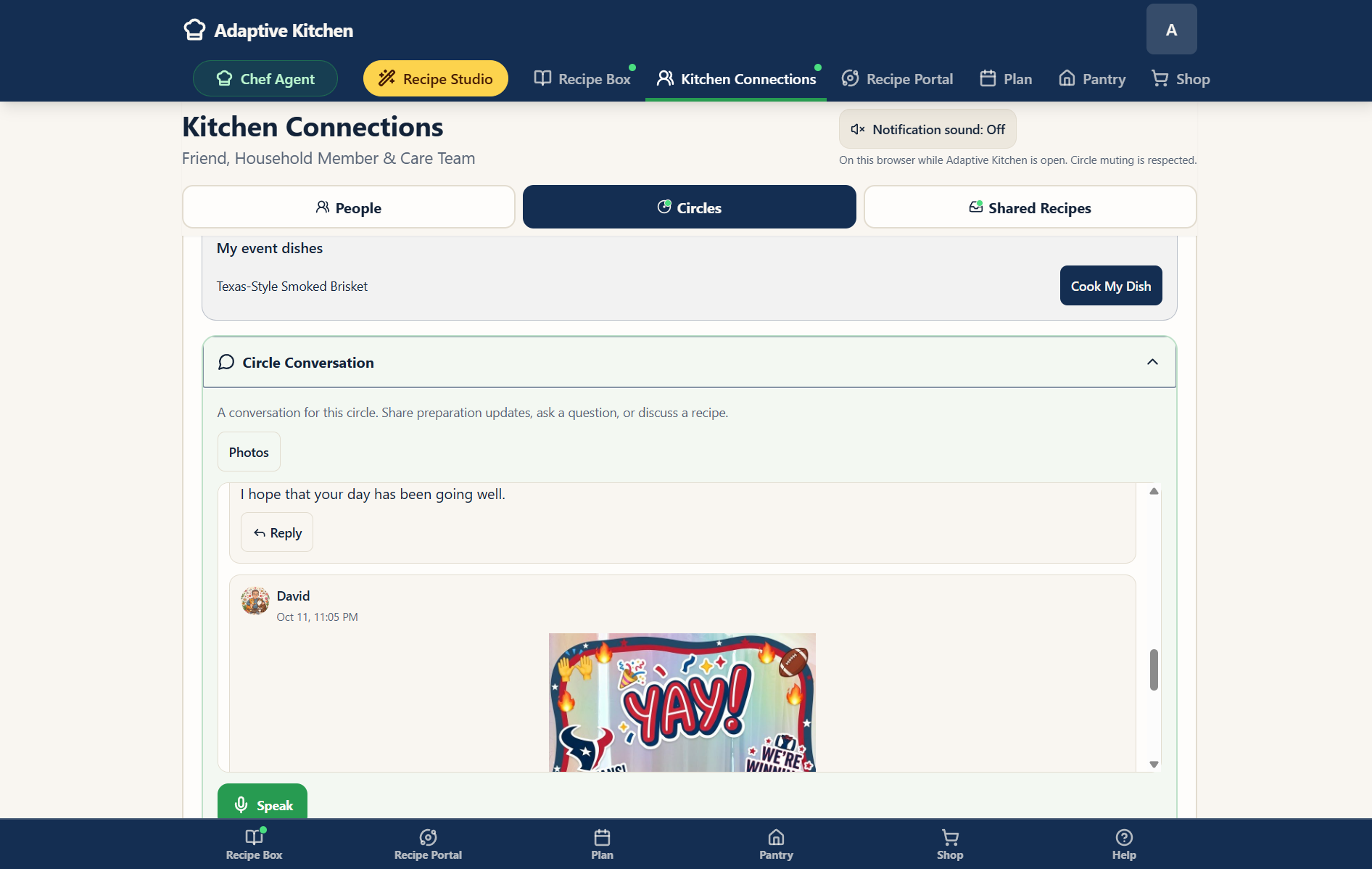
Keep the conversation alongside the plan. Share a preparation update, add a photo, or speak a message and review it before sending.
When you claim and plan a recipe contribution, choose your servings and add it to your own Meal Planner.
When it is time to cook, open your dish from the Circle and follow the step-by-step cooking screen.
Preparation guidance, ingredients, and spoken support help keep the next action in view. Here is Chef guiding one of the cooking steps.
Chef: David, for this step, cook the broccoli in the microwave exactly for the time on its steam bag label. Set the unopened bag on the microwave turntable and use a voice timer if that is easier. When it finishes, let it stand about one minute so the steam settles.
Whether you are swapping recipes, gathering around a holiday meal, or welcoming help in the kitchen, connection can make cooking feel more within reach.
Your kitchen. Your choices. Your circle. Adaptive Kitchen.
Build your circle
Different people. Different roles. One shared connection around food.
Kitchen Connections can support one-to-one relationships and groups so the people who matter can help in the ways that make sense — without turning the user’s kitchen into somebody else’s project.
Family
Share favorites and ideas across households. Offer separate helper access when someone needs to view your plan.
Friends
Send recipes, swap ideas and help with practical things such as shopping when invited.
Caregivers
Support shopping, preparation and cooking while respecting the person’s choices and preferences.
Groups
Create an ongoing cooking circle or a dated gathering with a shared menu and tasks.
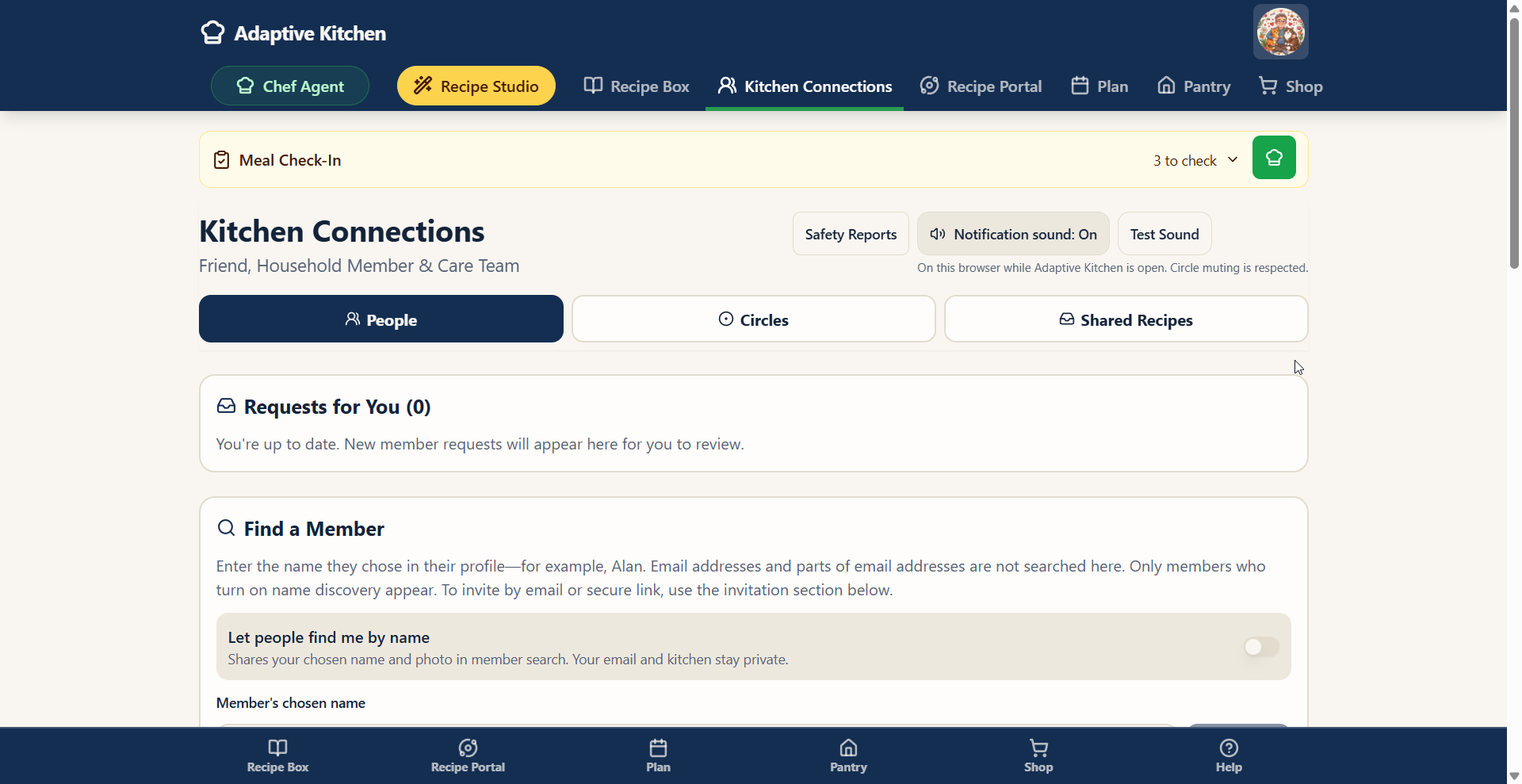
Start with People
Invite someone you want at your table.
Choose a Friend, Household Member or Care Team relationship. These labels describe the connection; they do not automatically give someone access to your private kitchen.
 Enlarge screenshot ⤢
 Enlarge screenshot ⤢
Find a member
Search by the name they chose in their profile. Only members who have enabled name discovery appear. Email addresses and parts of email addresses are not searched here.
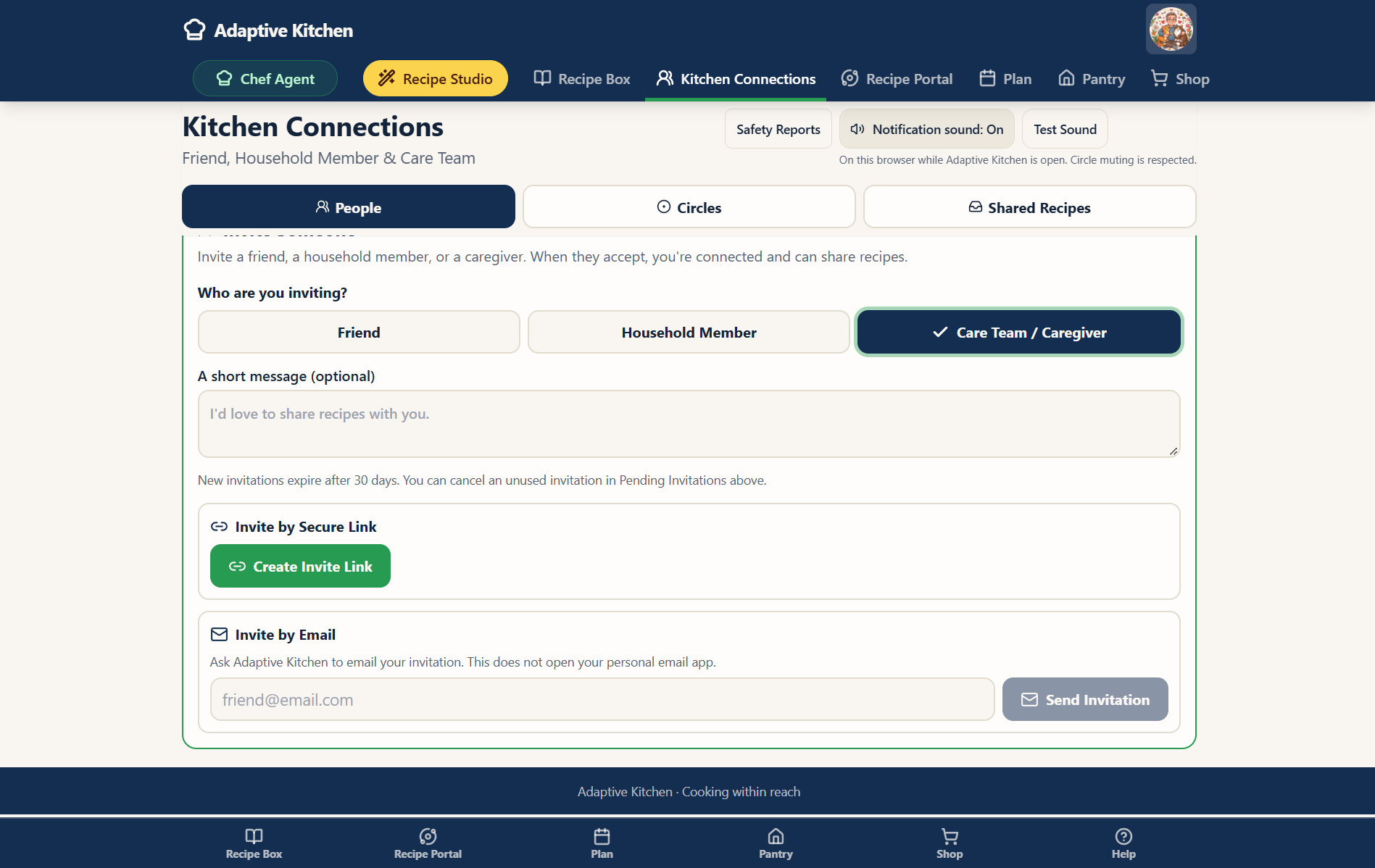
Send an invitation
Create a secure invite link to share yourself, or invite by email. Add a short personal message if you like. An email invitation must be accepted while signed in with the invited address.
Let them choose
The other person reviews and accepts the invitation before you are connected. Find incoming requests and pending invitations in People; unused outgoing invitations can be canceled.
New connection invitations expire after 30 days. Creating a link gives you something to send; it does not mean the other person has received or accepted it. Review the status shown after an email invitation rather than assuming delivery.
Share without giving away your kitchen
You share the recipe — not somebody else’s kitchen.
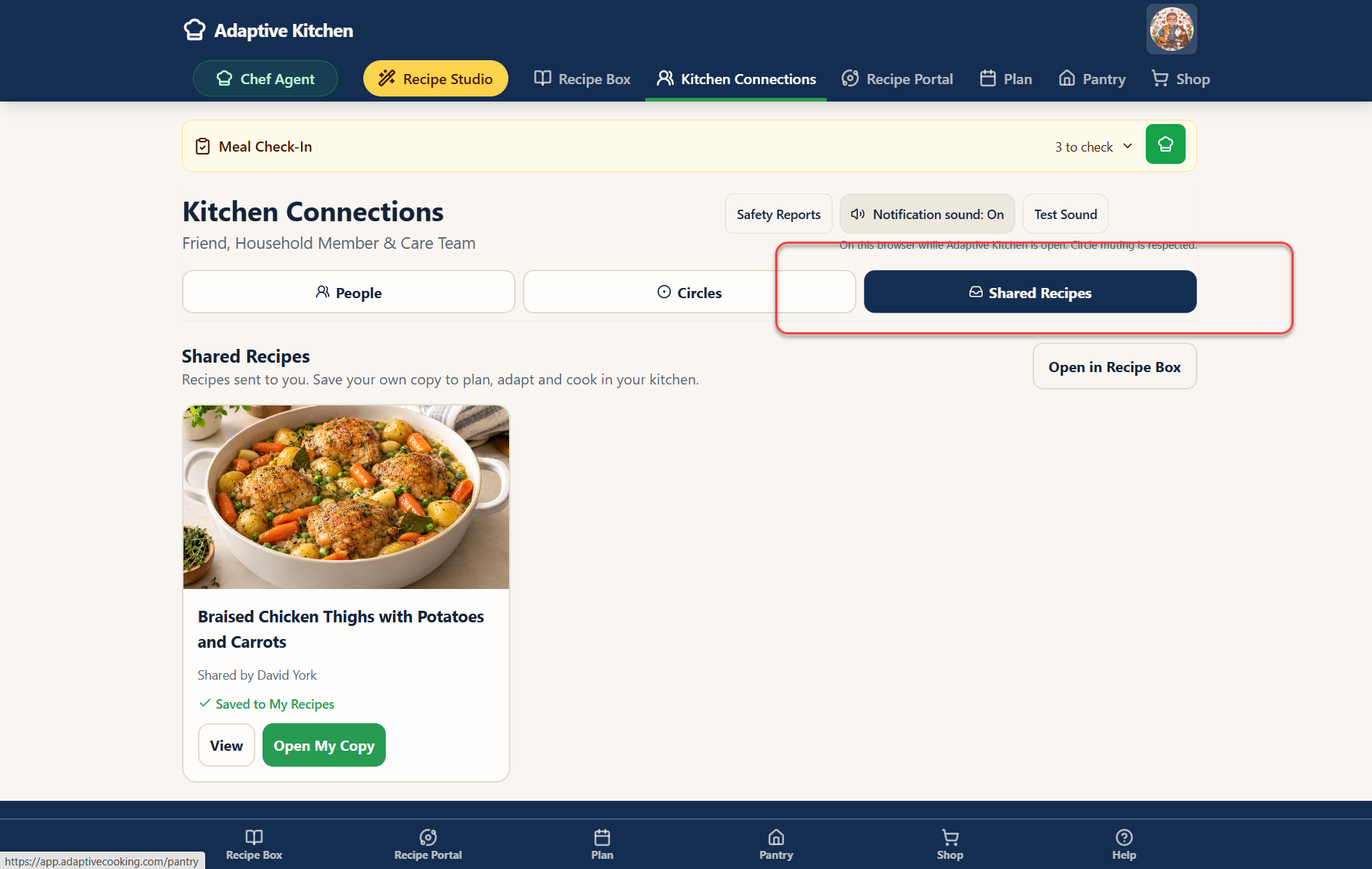
Share something from My Recipe Box with a trusted connection. They can find it in Kitchen Connections → Shared Recipes and in the Shared tab of their Recipe Box. View opens the shared version; Save to My Box creates their own working copy, and Open My Copy returns to it afterward.
Their saved copy works with their own Pantry, preferences and meal plan. Two people can enjoy the same dish without sharing ingredients, equipment or a calendar. Sharing a recipe does not give the recipient access to your Pantry, Shopping List or Meal Planner.
 Enlarge screenshot ⤢
Same recipe. Different kitchen.
Personal Recipe Journal entries stay private by default. If you explicitly select supported Journal notes to include in a connection share, only those selected notes travel with it. Review what you are sharing before sending.
Share the idea. Keep the kitchen personal.
Good recipes travel
Want to share with someone who hasn’t joined yet?
No problem. Choose Share on your saved recipe, create a web link, and send it to a friend or family member. They can open a beautifully formatted recipe page without already being an Adaptive Kitchen member.
The shared page also invites them to join Adaptive Kitchen and keep the recipe in their own Recipe Box. It is a simple way to share something you love and introduce someone to a more connected kitchen.
A recipe web link is different from a secure connection invitation. Anyone with the recipe link can view the shared recipe; it does not grant access to your private kitchen.
Plan together
Shared food works better when everyone knows their part.
Create an ongoing circle for family or friends, or a cooking event with a date, time and optional location. Invite people from your existing Kitchen Connections. They review the invitation in Circles and choose whether to join. The circle includes its own ongoing chat, so members can ask questions, share updates and keep the event conversation together with its menu and responsibilities.

Add a saved recipe, a named dish or a practical task to Menu & Tasks.
Ask questions, post updates and discuss the event in the circle’s ongoing chat.
Claim a dish or task so everyone can see who has taken it on.
For a dish, review the option to add it to your own planner and update its progress.
Mark circle progress as Planned, In progress or Ready so people can follow along.
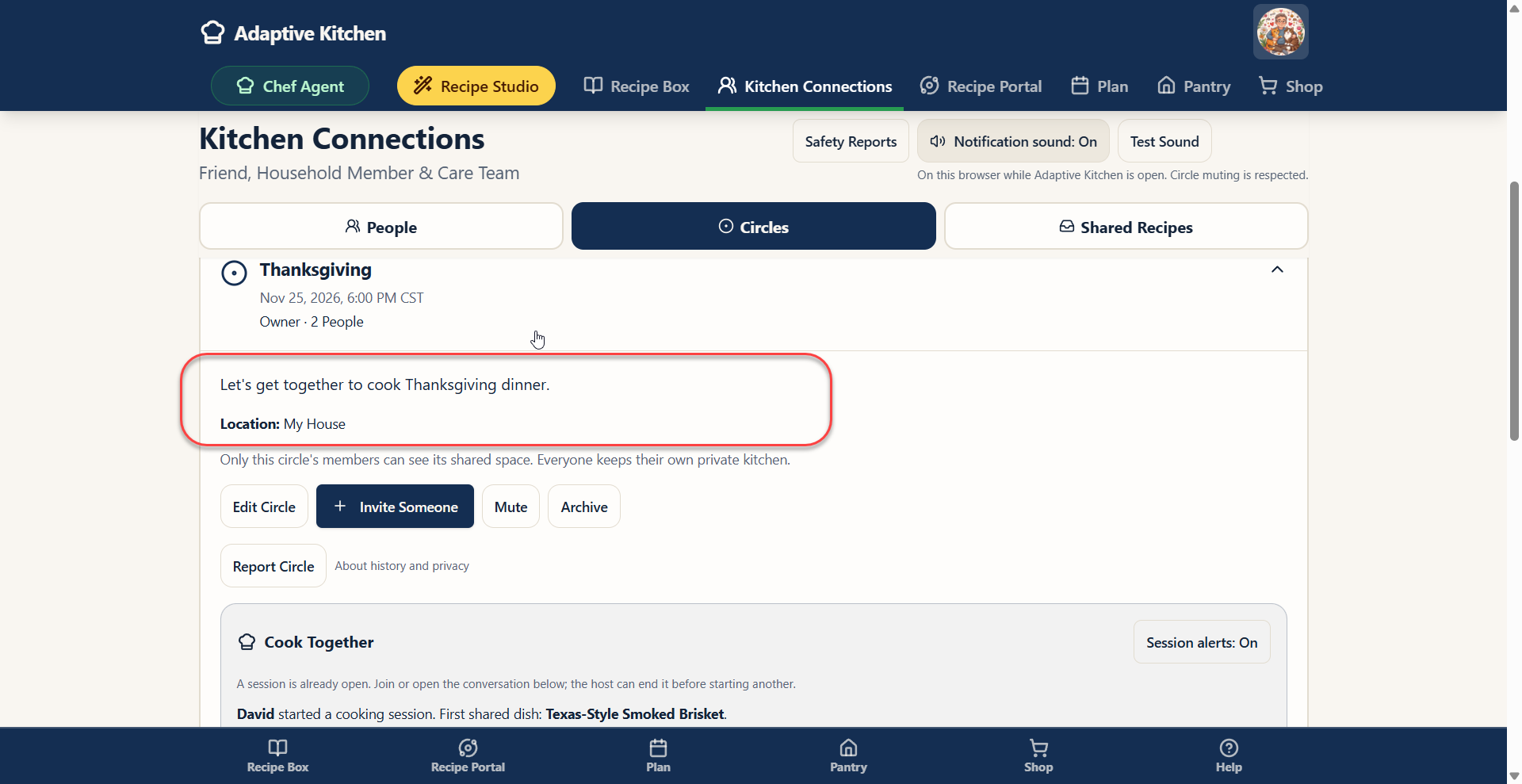 Enlarge screenshot ⤢
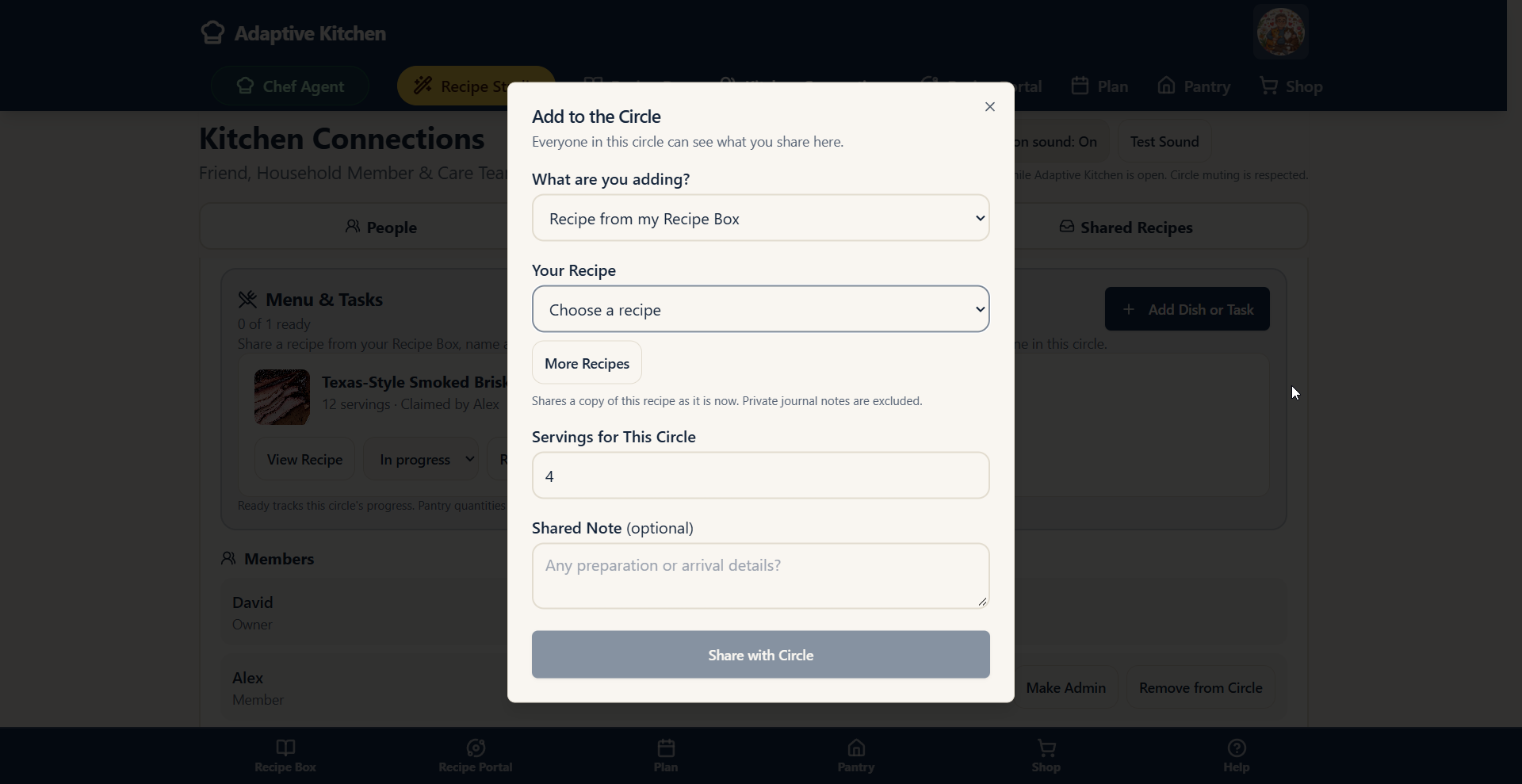 Enlarge screenshot ⤢
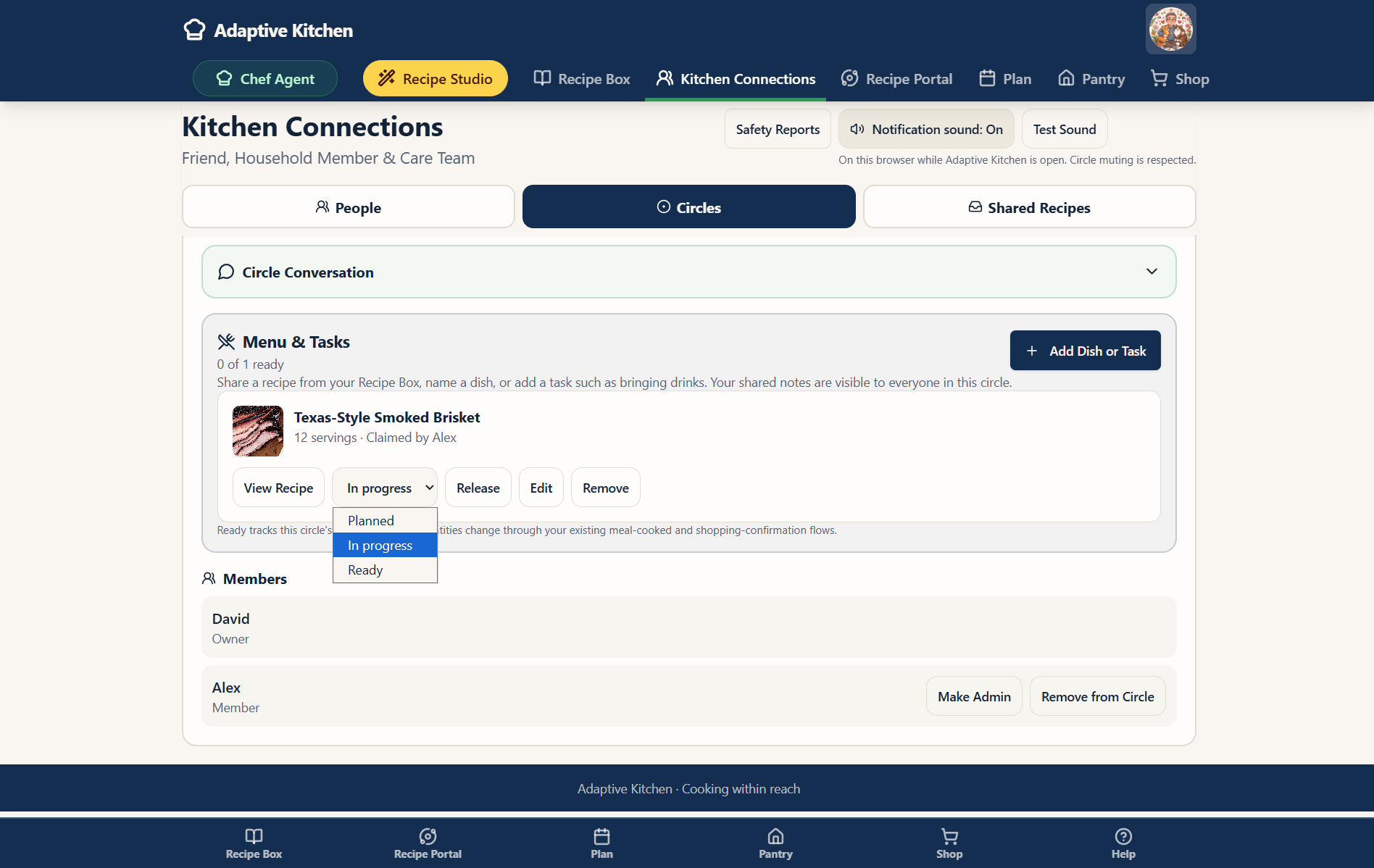 Enlarge screenshot ⤢
Your contribution, your plan
Bring two dishes? Plan two dishes.
Claim a dish and review how it fits your own calendar. A dated event supplies its event time; an ongoing circle lets you choose when you will prepare it. If a meal is already there, you can add your contribution alongside it.
If the same recipe is already planned, review whether to use that planned meal rather than create another one. Recipe-based contributions connect to your own ingredient checks and shopping projections using their planned servings.
The circle and your kitchen have different jobs.
A named dish without a recipe can be a custom calendar entry. It does not invent ingredients or nutrition. A task such as bringing ice records a responsibility rather than a recipe.
Circle progress is coordination: marking a dish Ready does not deduct Pantry stock or confirm groceries were purchased. Use the normal meal-cooked and purchase-confirmation workflows for those changes.
Releasing a claim or changing a circle entry does not silently remove or overwrite your personal planned meal. Review your calendar when your contribution changes.
Help where help is useful
Support can be practical without becoming controlling.
A trusted person can use a view-only overview to coordinate practical help. In People → Existing Connections, choose Helper Access beside the person, select what they may view, and send the separate helper invitation. Access begins only after they accept it.
Shopping support
Grant View Shopping List to show saved items still to buy and their quantities. This overview does not include unsaved projected needs or let the helper confirm purchases.
Prep support
Grant View Meal Plans to show scheduled meals and their recipe ingredients and instructions. The helper can coordinate preparation without changing your calendar.
Dignity & choice
Independence doesn’t always mean doing everything yourself.
Someone may not physically prepare the meal and still remain fully involved in deciding what they eat, choosing recipes, building the plan and communicating preferences.
Assistance with cooking should not automatically mean surrendering choice.
 Enlarge screenshot ⤢
Access you choose
A clear invitation. A clear boundary.
Kitchen Helpers separates a social connection from permission to view specific parts of a kitchen. Being family, a caregiver or a circle admin does not grant that permission by itself.
Access I share
Review the helper invitations you have offered. Change Permissions when the arrangement changes, or Revoke Access to stop future access to those views.
Kitchens shared with me
Review an incoming helper invitation and accept or decline. After acceptance, open only the views offered. Your own kitchen is not shared back automatically.
View-only support
Current permissions cover meal plans and the saved Shopping List. They do not include editing, Pantry inventory, private Journal notes, cooking photos, Chef conversations or billing.
Changing permissions pauses access until the helper accepts the revised invitation. A helper can choose Stop Helping. Revoking access ends future access; it cannot take back information already seen.
Shopping, purchase review, Pantry updates and cooking confirmations remain in the kitchen owner’s app. A helper’s view helps coordinate the real-world assistance you agree on.
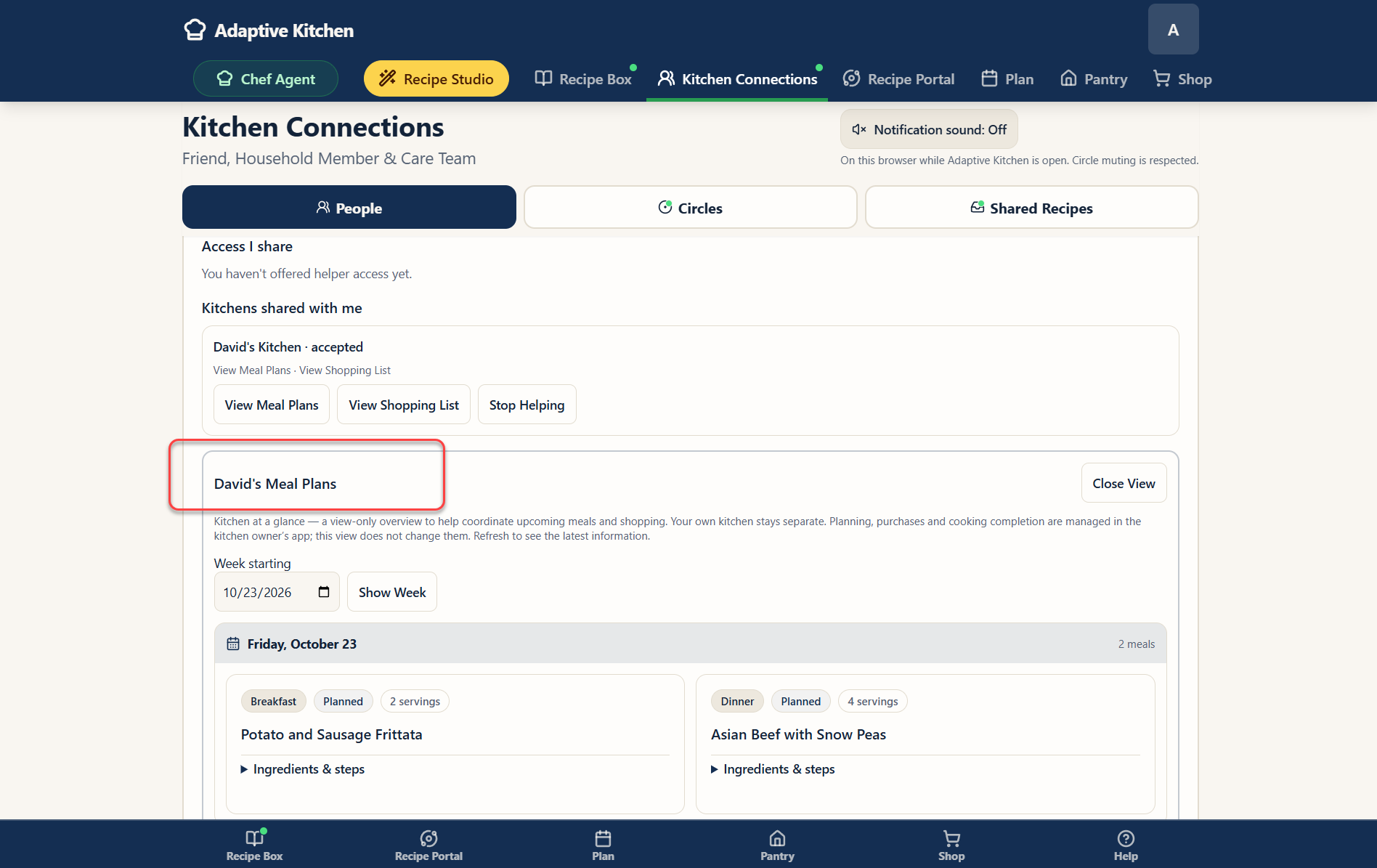 Enlarge screenshot ⤢
 Enlarge screenshot ⤢
Stay connected
Recipes are only part of the conversation.
Kitchen Connections is also about the little coordination that happens around food: “How did the soup go?” “Do we need anything from the store?” “Want to try this next week?” The goal is to keep those exchanges attached to the kitchen decisions they support.
Shared Recipes
View incoming recipes, save your own copy, and return to the copy you use in your kitchen.
Circle conversation
Each circle has its own ongoing chat for questions, updates and conversation. For an event, the discussion stays associated with that event’s circle, alongside its menu and responsibilities, for the members taking part.
Private by design
Share intentionally with trusted people and keep the user in control of what is visible and who is involved.
 Enlarge screenshot ⤢
Make the space work for you
Choose who stays connected — and how you hear from them.
Remove or block
Remove ends the connection; a new invitation can reconnect you later. Block also stops new connection requests and private recipe sharing between you. Recipes already saved to either Recipe Box remain.
Mute or leave a circle
Mute quiets that circle’s notifications without ending membership. Leave ends your access to its shared space. Owners can archive a circle to make it read-only.
Manage circle roles
A circle owner can appoint an admin to help manage invitations and ordinary members. That role does not give access to anyone’s private Pantry, planner or Shopping List.
Notification sound controls the connection chime in this browser while Adaptive Kitchen is open; it is separate from the Chef’s spoken responses. Circle muting is respected. Use the available report controls when a circle or its activity needs a safety review.
Not sure where to start? Ask.
Open the green Chef Assistant button at the top of the app for help with People, Circles or Shared Recipes. Get an explanation while keeping Kitchen Connections in view.
Speak or type, then listen to the response or read quietly using your voice settings. The Chef can explain the steps; review the actual invitation and permission controls when you are ready to act.
Try asking
- Where do I accept an invitation?
- How is helper access different from sharing a recipe?
- What happens when I claim a dish?
- Can a circle admin see my Pantry?
- What is the difference between View and Open My Copy?
The complete journey
One recipe can become an entire connected kitchen experience.
Adaptive Kitchen turns the recipes you love into a kitchen that works around the way you live.
Questions
Kitchen Connections FAQ
Kitchen Connections is about trusted collaboration without turning someone else into the owner of your kitchen. These are the questions people are most likely to ask about sharing and support.
Is Kitchen Connections only for caregivers?
No. Use it with friends, family, household members, a care team or a group that enjoys cooking together. You can share a favorite recipe without needing or offering deeper kitchen access.
What is the difference between Friend, Household Member and Care Team?
These labels describe the relationship you choose when inviting someone. They do not automatically combine accounts, calendars or Pantry stock, and they do not grant helper permissions. Offer those permissions separately through Helper Access when wanted.
How do I find a member?
In People, search for the name the person chose in their profile. Only members who enabled name discovery appear. This search does not look up email addresses or parts of an email address. Use an email invitation or a secure invite link when that is more appropriate.
Should I use a secure link or an email invitation?
A secure link is useful when you want to send the invitation yourself through a familiar channel. An email invitation is addressed to a specific email, and the recipient must sign in with that address to accept it. Review the sending status; an invitation being created is not proof of email delivery. New connection invitations expire after 30 days.
Where do invitations and requests appear?
Find incoming connection requests and pending outgoing invitations in People. Circle invitations appear in Circles. A separate offer of helper access appears under Kitchen Helpers → Kitchens shared with me. Review and accept the relevant invitation before expecting access.
How do I share a recipe?
Choose Share on a saved recipe and select an accepted Kitchen Connection. The recipient finds it in Kitchen Connections → Shared Recipes and Recipe Box → Shared. Sharing the recipe does not share your calendar, Pantry or Shopping List.
What is the difference between View and Open My Copy?
View opens the shared recipe. Save to My Box saves your own working copy, which you can use with your own preferences, Pantry and planner. Once saved, Open My Copy returns to that copy.
Can I share a recipe with someone who is not a member?
Yes. Choose Share and create a recipe web link. A friend or family member can open the formatted recipe page without an existing Adaptive Kitchen account. The page invites them to join and keep the recipe in their own Recipe Box. This recipe link does not create a Kitchen Connection or grant private kitchen access.
Do my Recipe Journal notes travel with a shared recipe?
They stay private by default. If you deliberately select supported Journal notes for a connection share, only those selected notes are included. Other Journal entries, private cooking photos and Chef conversations are not automatically shared. Review the share selection before sending.
Does accepting a recipe give the sender access to my kitchen?
No. Saving or viewing a shared recipe does not give the sender access to your Pantry, Shopping List, calendar or private preferences. Your saved copy is used in your own kitchen context.
How do I give an existing connection helper access?
Open People → Existing Connections and choose Helper Access beside the person. Select View Meal Plans, View Shopping List, or both, then send the helper invitation. The person must review and accept it before access begins. You can change permissions or revoke access later.
What can a helper currently view or change?
Current helper permissions are view-only: scheduled meals with their recipe ingredients and instructions, and saved Shopping List items still to buy with their quantities. They do not include editing, Pantry inventory, private Journal notes, cooking photos, Chef conversations or billing. The shopping overview does not include unsaved projected needs.
What happens when I accept a kitchen shared with me?
You gain the specific view-only access offered in that invitation. Your own kitchen is not shared back automatically. You can open the permitted overview and use it to coordinate help, or choose Stop Helping later. If the owner changes permissions, access pauses until you accept the revised invitation.
Can I confirm someone else’s shopping trip or update their Pantry from the helper view?
No. The current helper views support coordination, not editing or purchase reconciliation. Purchases, Pantry updates and cooking confirmations remain in the kitchen owner’s app through the normal workflows.
How do I create a cooking circle?
Open Circles and choose Create Circle. Name it, choose an ongoing group or a dated cooking event, and add optional details. Then invite people from your existing Kitchen Connections. They choose whether to accept; creating a circle does not add anyone automatically.
What can we put on a circle’s menu?
Add a saved recipe, a dish without a recipe, or a task such as bringing drinks. Members can see shared notes, claim responsibilities and update progress. A recipe-based dish can connect to the claimant’s own planner, ingredient checks and shopping needs; a named dish without ingredients remains a custom plan.
Is there a chat for our event?
Yes. A cooking circle includes an ongoing chat for its members. Ask questions, share arrival or preparation updates, and discuss the event there so the conversation stays with that circle’s menu and tasks rather than becoming scattered across separate messages.
Can I take responsibility for more than one dish?
Yes. Review each contribution when claiming and planning it. Existing meals can remain in place while an event dish is added alongside them. If the same recipe is already scheduled, review whether to use that planned meal instead of adding another copy. Your own servings and calendar determine your meal needs.
Does marking a circle dish Ready deduct Pantry stock?
No. Circle progress tells the group how preparation is going. Pantry stock changes through the existing meal-cooked or purchase-confirmation workflows. Releasing a claim or removing a circle entry does not silently remove your own calendar entry; review the planner if your plans change.
Can I give someone admin access to a circle?
A circle owner can appoint an admin to help manage invitations and ordinary members. The owner remains the owner. Circle admin access does not give access to anyone’s private planner, Pantry or Shopping List.
What is the difference between muting, leaving and archiving?
Mute quiets that circle’s notifications while you remain a member. Leave ends your access and requires a new invitation to rejoin. An owner can archive the circle, closing invitations and making its shared space read-only. These actions do not delete personal saved recipe copies.
What is the difference between removing and blocking a person?
Remove ends the connection, with a new invitation needed to reconnect. Block also stops new requests and private recipe sharing between you. Already-saved recipe copies remain. Unblocking does not automatically restore the connection, and circle membership has its own controls.
Does turning notification sound off also silence the Chef?
No. This control concerns connection notification chimes in the current browser while the app is open. The Chef’s spoken responses use separate voice settings. Muted circles remain muted.
Where can I get help or report a concern?
Use Chef Assistant for explanations of the page and its controls. Use available report controls for a safety concern about a circle or its activity. Reporting and connection controls have different purposes; choose Remove, Block, Mute or Leave when you want to change your own participation.
Connection without losing independence. Support without losing dignity.
Adaptive Kitchen brings people together to make good food and brighter days — with you at the center.
Launch Adaptive Kitchen →Adaptive Kitchen. Cooking within reach.