
How It Works · Pantry & Shopping
Know what you have. Know what you need. Buy the difference.
Adaptive Kitchen connects Pantry, recipes, the Meal Planner and Shopping so you can stay prepared without turning home food inventory into another chore.

A quick tour
See Pantry & Shopping in Action
See how easy Pantry entry and upkeep connect with Chef, recipes, upcoming meals and Shopping — helping you make the most of the food you already have.
2 minutes 23 seconds · Narration and explanatory captions included. English narration subtitles are available in the player. Press play to watch with sound; use the speaker control to adjust or mute it.
Read the video transcript
Your Pantry is the starting point for a more connected kitchen. Keeping it current helps Chef, recipes, meal plans, and Shopping work together.
See what you have at home, with upcoming meal needs shown separately from your actual inventory.
Browse a category, expand a group, and make a quick adjustment as your supplies change.
Getting started is easy. Type your items, speak your inventory, or upload a recording. Receipt text and photos are options, too.
Simply say what is in your kitchen, in your own words. Include quantities when you know them.
Adaptive Kitchen prepares an editable review. Check names, quantities, units, and categories before you confirm what to save.
You also choose which items to track for meals. Meal tracking controls which stock is used for coverage and related deductions.
Now comes the payoff. What Can I Make helps you find a saved recipe or explore something new with Chef.
Explore My Recipes shows saved and shared recipes, with Pantry matches and missing ingredients to review.
A close match can start a conversation. Choose Make This Work With What I Have to discuss adjustments with Chef.
Chef Agent: “David, a few good low-effort directions use the mushrooms, cream, diced onion, salad bags, pork steaks, and openable canned goods before they linger.”
Narrator: Choose an idea, then refine it together.
Pantry information can support Chef help for new creations and recipes imported through Recipe Portal, including favorites from popular recipe websites.
Pantry connects with your meal plan, too. Choose a date range and expand Upcoming Needs to look ahead.
Review what still needs adding, what needs your check, and what is already on your Shopping List.
You may also see a possible Pantry alternative. Review its suitability with Chef before making a substitution.
When it is time to shop, select the items you want. Choose Kroger, or copy or email your list for another store.
With Kroger, review product options and package quantities, then send your choices to the cart.
Your trip stays pending until you record what came home. Sending items to a cart does not update Pantry.
After shopping, speak your purchases, paste receipt text, use receipt images, or review your list by hand.
Even a receipt photo can help keep Pantry current. Review the items and confirm what you received before saving.
Start easily. Update as life happens. Make the most of what is already in your kitchen, with Adaptive Kitchen.
Know what you have
A real Pantry — without making inventory a full-time job.
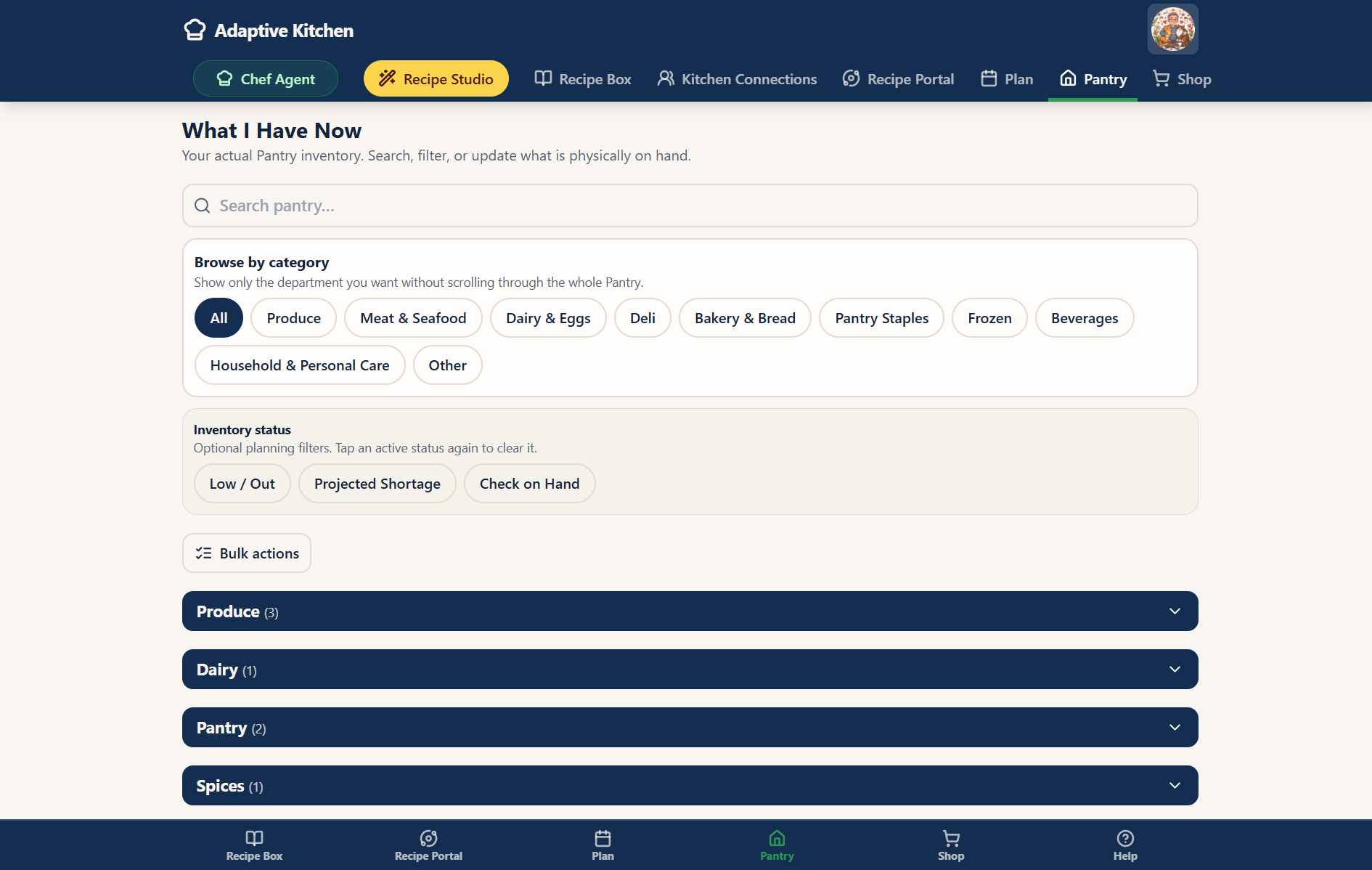
My Pantry represents what the household actually has on hand. Keep useful quantities and units, search quickly, filter by category and update items without digging through a giant list.
Expandable category groups keep the view tidy. Adjust an existing item with its plus and minus controls, edit its details, or use Bulk actions to select several items for deletion. A confirmation lets you cancel before anything is removed.
Useful enough to help. Simple enough to maintain.
Ingredient intelligence
Not every ingredient should be treated the same way.
Adaptive Kitchen is designed to distinguish everyday kitchen basics, common staples and genuine recipe needs so Pantry and Shopping stay useful instead of noisy.
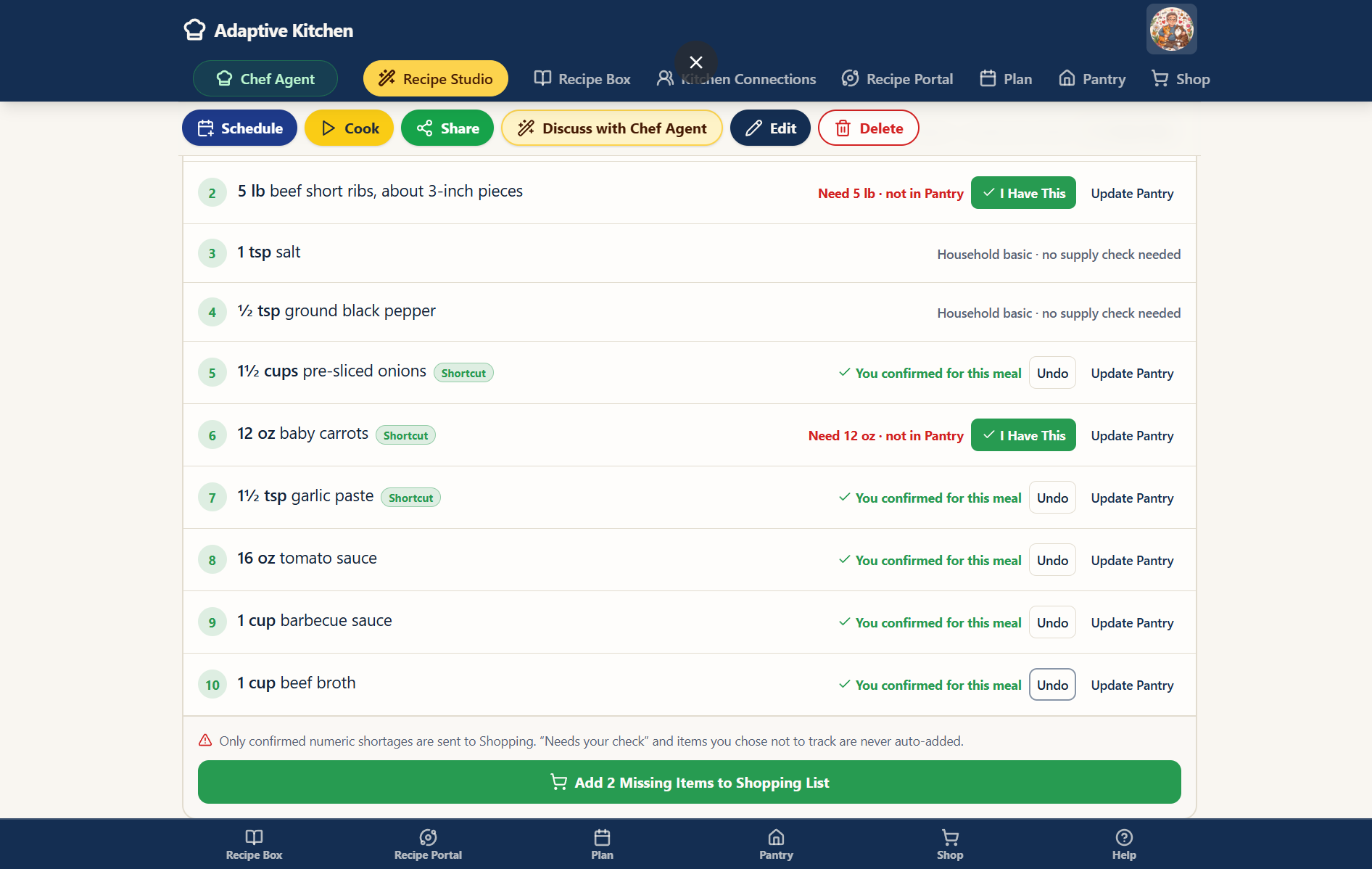 Enlarge screenshot ⤢
Confirm an ingredient for this meal, or update Pantry when you want to record stock.
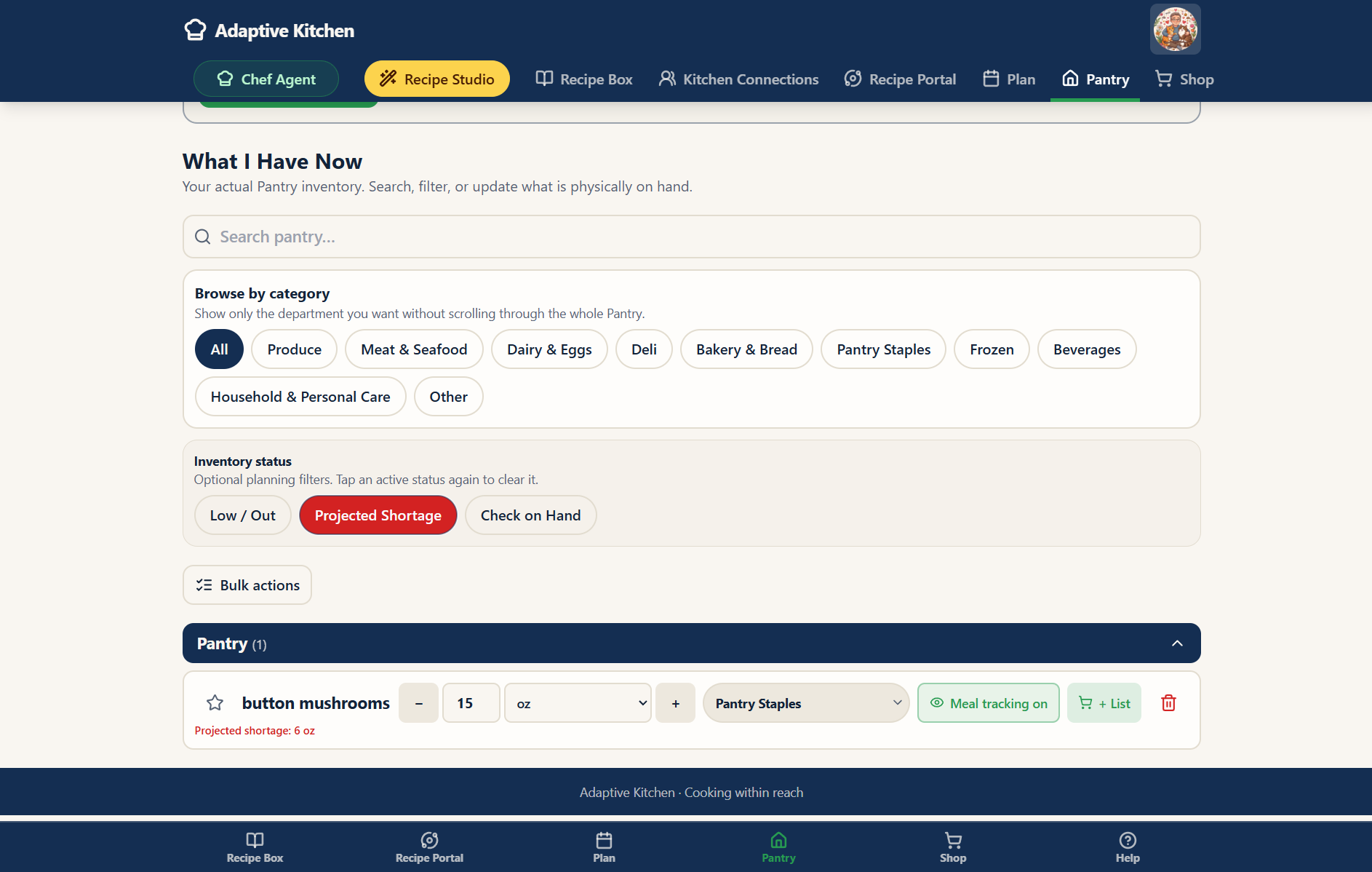 Enlarge screenshot ⤢
Meal tracking and projected shortages help distinguish what is on hand from what upcoming meals need.
Handle ordinary basics intelligently
Salt, black pepper and water remain in recipe ingredients and instructions, but do not become repeated missing-item or Check on hand prompts for meal planning. Other ingredients, including cooking oils, still depend on your records and tracking choices.
Give staples a softer treatment
Items such as flour, sugar, butter and eggs can be treated as things worth checking rather than blindly assumed or automatically purchased.
Keep genuine shortages genuine
Meat, produce, pasta, broth, specialty cheese, sauces and similar ingredients remain meaningful needs when you do not have enough.
Useful quantities. Your level of detail.
Keep exact quantities when they help, or record a practical amount such as a bag, container or package. Optional package details support more precise planning. If the app cannot compare the amount confidently, it asks you to check rather than inventing certainty. Ingredient matching helps keep equivalent names together while preserving meaningful differences, such as black beans versus pinto beans.
Start with the food already at home
Add to Pantry without making a shopping trip.
You do not need to build a Shopping List first. Use direct Pantry entry to record what you already have, whether you are getting started or putting away a few groceries.
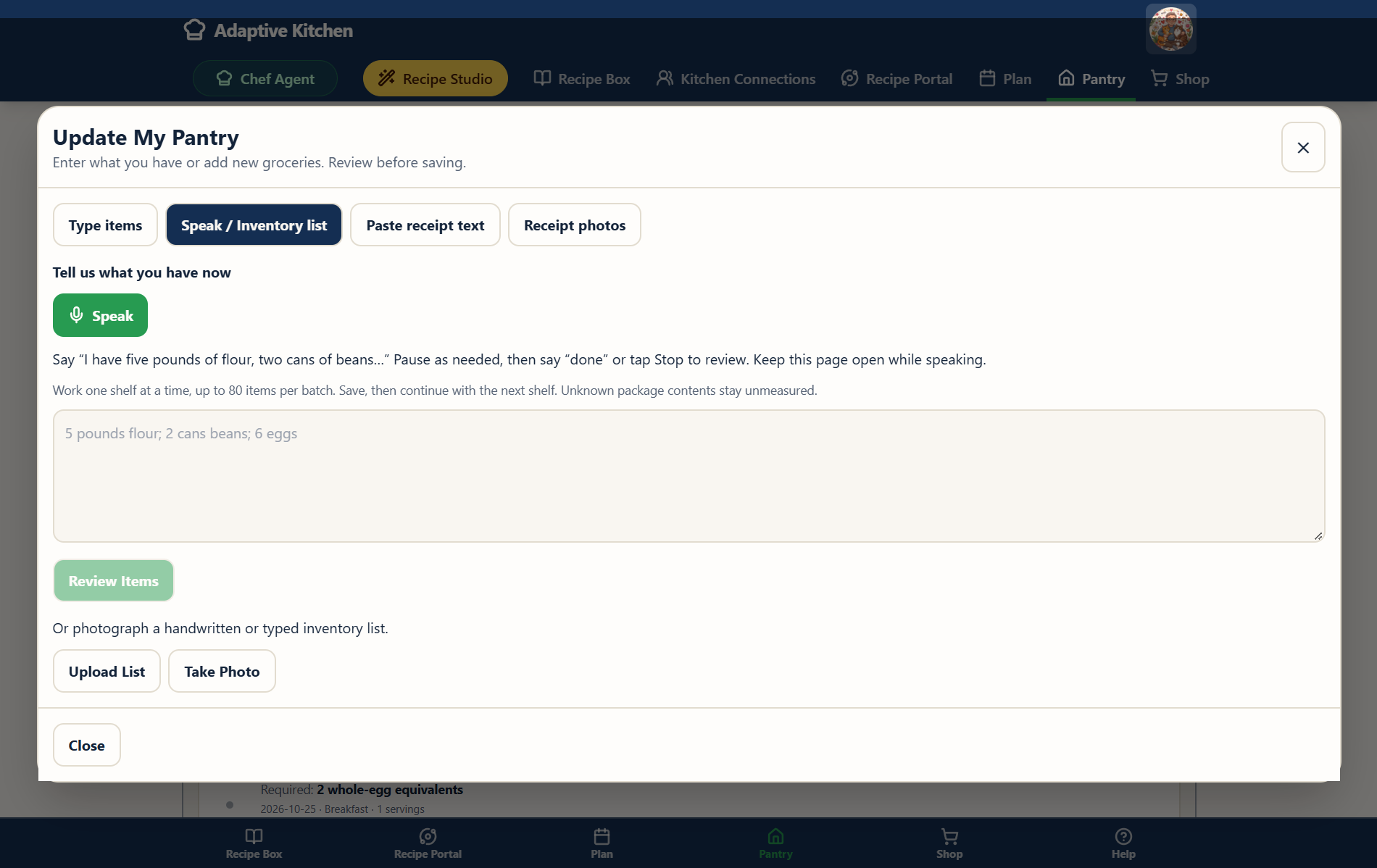
Type or speak
Enter items manually, or speak what you have and review the organized entries. Use familiar names, useful quantities and Pantry categories.
Use a receipt
Paste receipt text or use receipt images, including a photo or screenshot. Review the food items, quantities and categories before saving them to Pantry.
Review and save
Suggestions from existing and previous entries help avoid duplicate names. Review how a matching item updates existing stock, then confirm. Pantry refreshes to show the saved changes.
Adding a batch of items and adjusting an existing item’s quantity are separate actions. Use the quick controls for a simple increase or decrease; use the entry review when bringing in several items.
Know what you can cook
Start with your own kitchen before searching the whole internet.
What Can I Make? looks first at recipes already available to you — including eligible shared recipes — and compares them with Pantry information locally.
A recipe can still be worth making when a few ingredients need attention. Readiness indicators help you narrow the choices; open the recipe to understand what is covered and what needs a check:
A partial match is a prompt to review, not a guaranteed shopping count. Unknown quantities and possible substitutions may need your judgment. Want more ideas? Choose online discovery, preview the available recipe details and ingredient comparison, then decide what to save.

Cook with what you have
Start with ingredients, not a stock audit.
“I have chicken, mushrooms and salsa” is a useful starting point. Ask the Chef for ideas, then check the amounts when you choose what to make. Saved cooking methods, equipment, dietary and preparation preferences still help shape Recipe Studio’s suggestions.
Using ingredients already at home can help you make use of food that might otherwise be forgotten. Explore recipes and Recipe Studio →
Possible alternatives
You may already have another option.
Fresh, frozen, canned and dried forms can offer useful alternatives, depending on the dish. Frozen broccoli, jarred garlic or dried herbs may be worth considering when the exact ingredient is not on hand.
These are suggestions to check, not automatic equivalents. The amount, texture or preparation may need to change. Use the recipe’s green Chef hat to discuss a substitution while keeping the recipe in view.
Keep real differences clear. Black beans are not pinto beans, and an entry that only says “beans” needs clarification. Similar names should not erase the identity of the food.
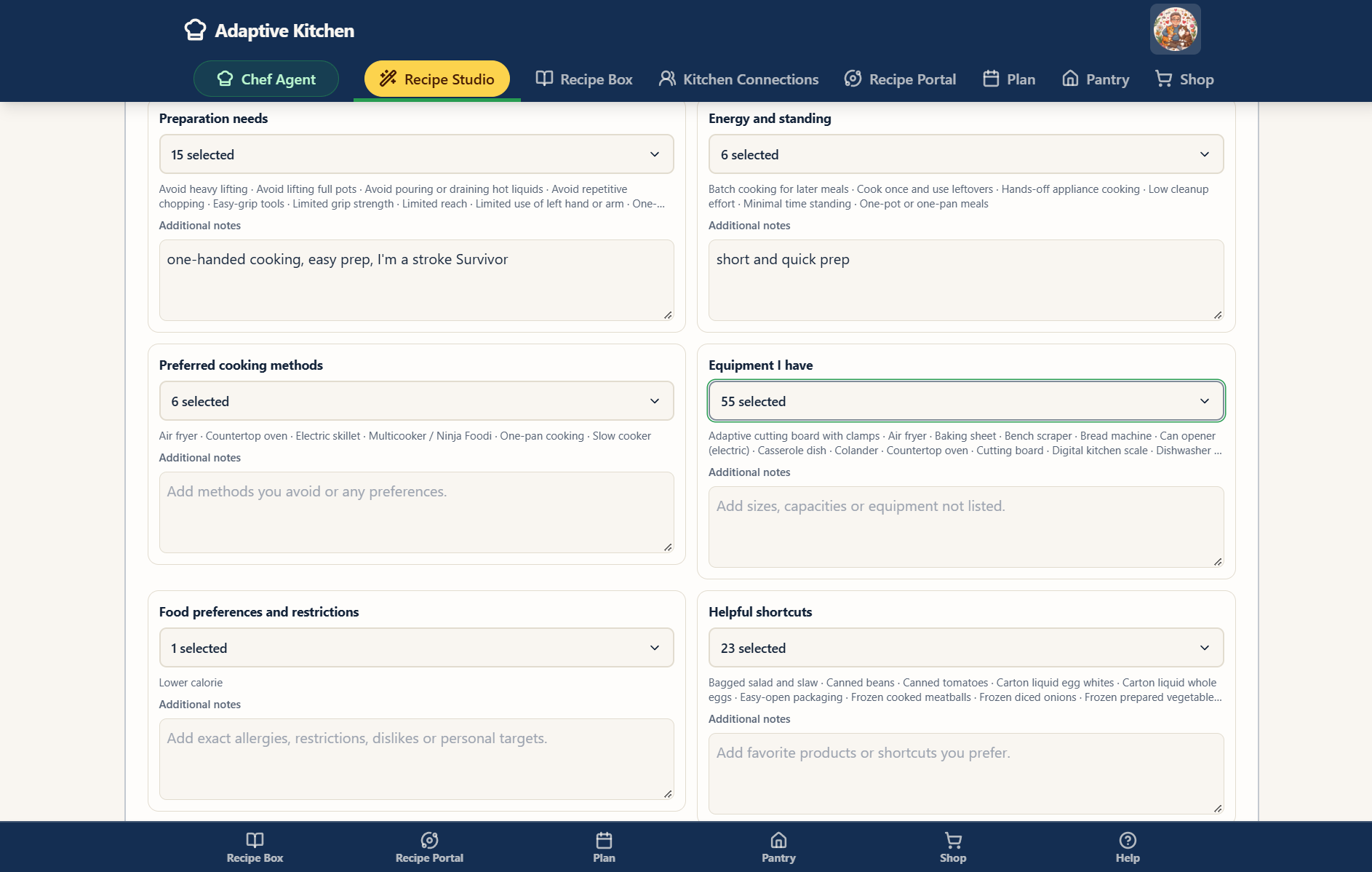 Enlarge screenshot ⤢
Saved preferences help shape ideas around your kitchen and preparation needs.
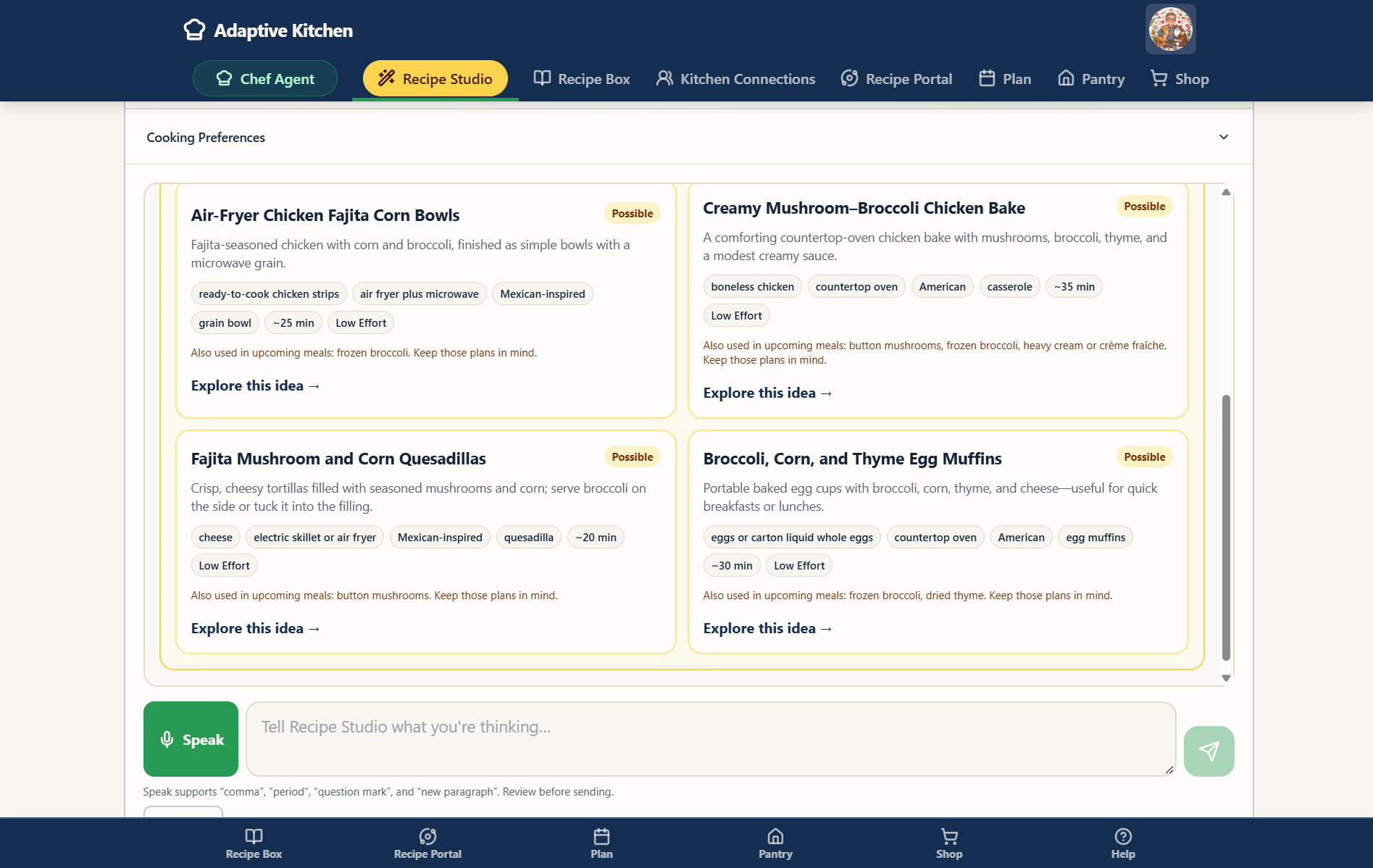 Enlarge screenshot ⤢
Explore Chef ideas while keeping ingredients used by upcoming meals in view.
Look ahead
Your Meal Planner can tell you more than what you need tonight.
When several planned meals use the same ingredients, Adaptive Kitchen can look across the shopping window you care about — today, several days or the week — and compare the combined demand with tracked Pantry stock and quantities already on your Shopping List. Compare the same date range in each view to follow the same set of meals and sides.
Aggregate demand
Combine needs across planned recipes and their sides, then account for stock and items already listed.
Chronological planning
Allocate tracked stock across meals in date order, so the same quantity is not counted as available again and again.
Leftovers behave like leftovers
A custom leftovers or dining-out entry has no recipe ingredient demand. It does not deduct the original ingredients again.
Plans can change
Removing, replacing, rescheduling or changing servings refreshes projected needs.
Planning predicts. Cooking deducts.
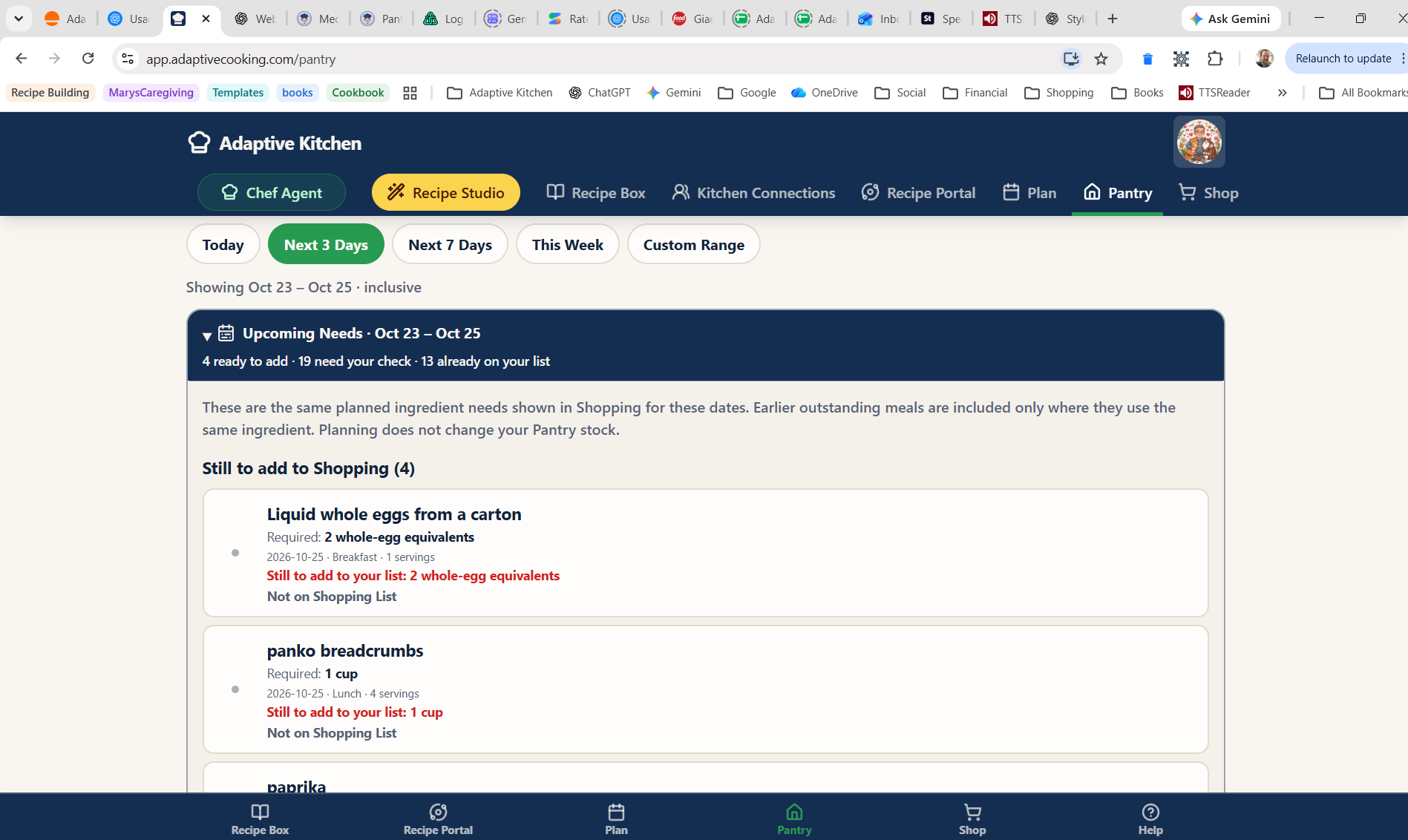 Enlarge screenshot ⤢
Pantry shows upcoming ingredient needs separately from the inventory you physically have.
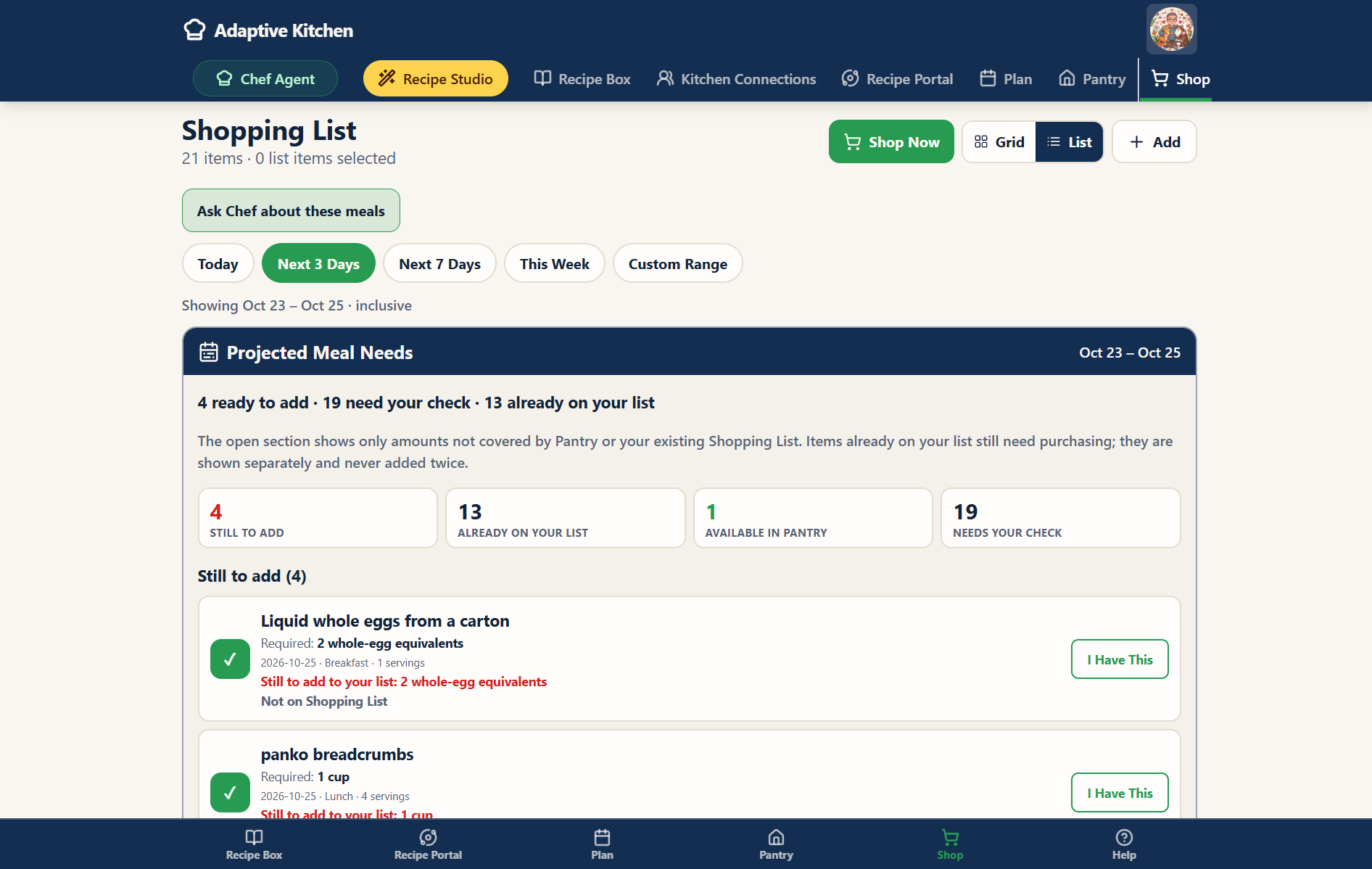 Enlarge screenshot ⤢
Shopping shows the same planning window, with existing list items kept separate to avoid adding them twice.
Separate the decisions
Projected needs are not already on your list.
Upcoming needs appear separately from Pantry inventory and the actual Shopping List. Expand the needs panel when you want to review the selected dates.
Food already at home
Tracked stock can cover a planned amount. Items on a Shopping List are still intentions to buy, so they are shown separately from physical Pantry stock.
A remaining need
Review the deficit after appropriate Pantry stock and Shopping List quantities are considered. Add what you want to buy; projections do not silently add it for you.
A decision for you
Check an uncertain amount or possible alternative. Choose “I have this” for the current preparation, with Undo available, or add the needed amount to Shopping.
“I have this” means just that.
It does not silently add stock to Pantry or place anything on the Shopping List. It is not a permanent promise that every future preparation of the same recipe is covered.
Your tracking choices matter. Pantry and Shopping are optional and can be enabled separately. Per-item Meal tracking controls which inventory is authoritative for meal calculations. Untracked food is not automatically counted as a confirmed shortage.
Buy only what’s missing
Turn genuine shortages into an organized Shopping List.
Choose the day or date range you are shopping for, see what is already on hand and deliberately move what you still need into Shopping. Projected needs do not silently become purchases — you remain in control.
- Combine compatible ingredient needs from several recipes instead of creating duplicate rows; review amounts that cannot be confidently combined.
- Add a container of mushrooms or a bag of tomatoes when that is how you shop. Review package details later if exact coverage needs them.
- Add ordinary household items, such as paper towels, alongside your groceries. Keep non-food purchases out of food Pantry inventory.
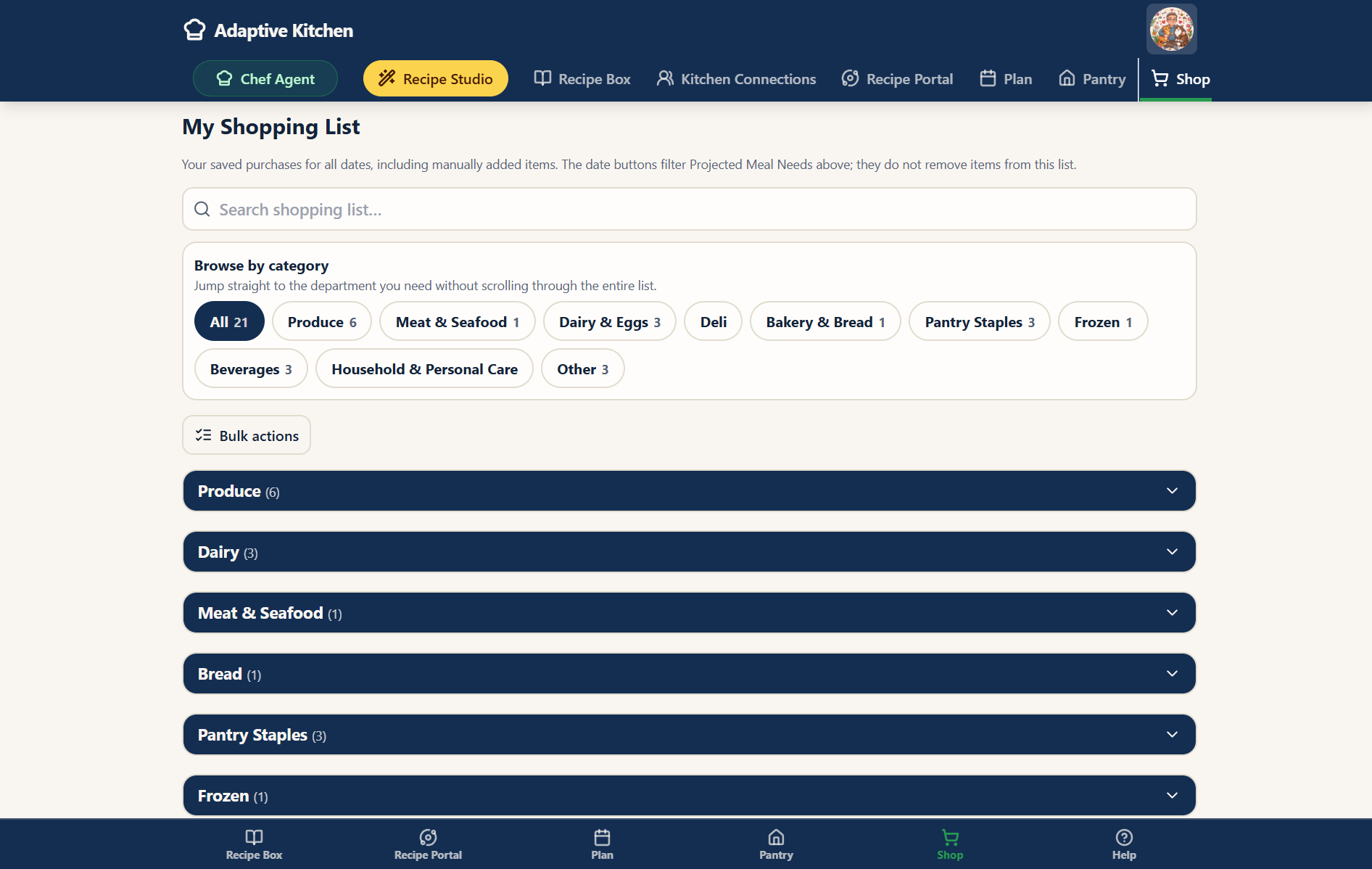
- Keep the list searchable and organized by categories, with expandable groups and confirmed Bulk deletion.
Take the list where you shop
Adaptive Kitchen helps decide what you need. Your retailer helps you choose exactly what you want to buy.
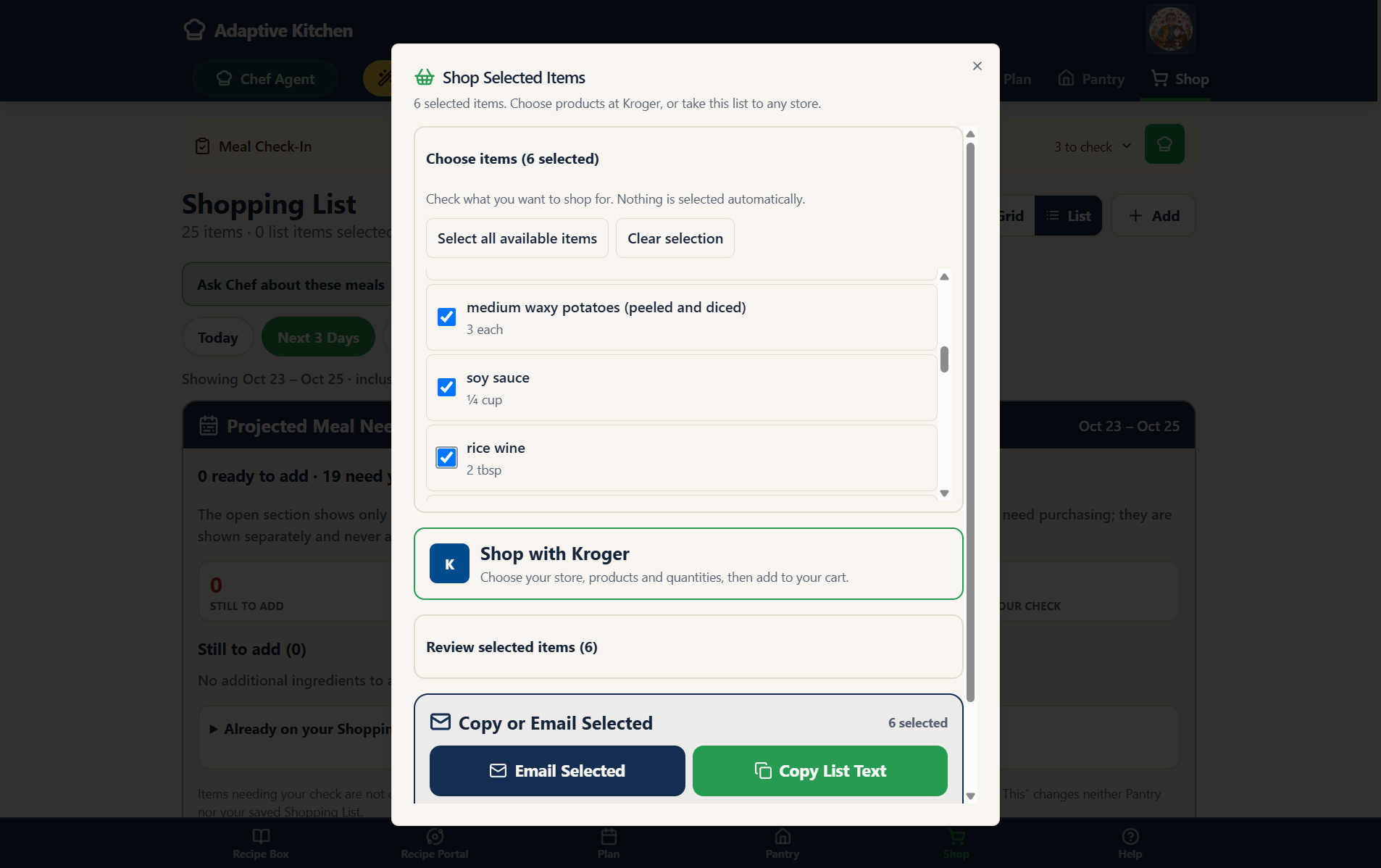
Check the actual Shopping List items you want to take on this trip, then choose Shop Now. The shopping window brings the connected Kroger experience and the options to copy or email your selected list into one place. Expand a category if you need to review which items are selected.
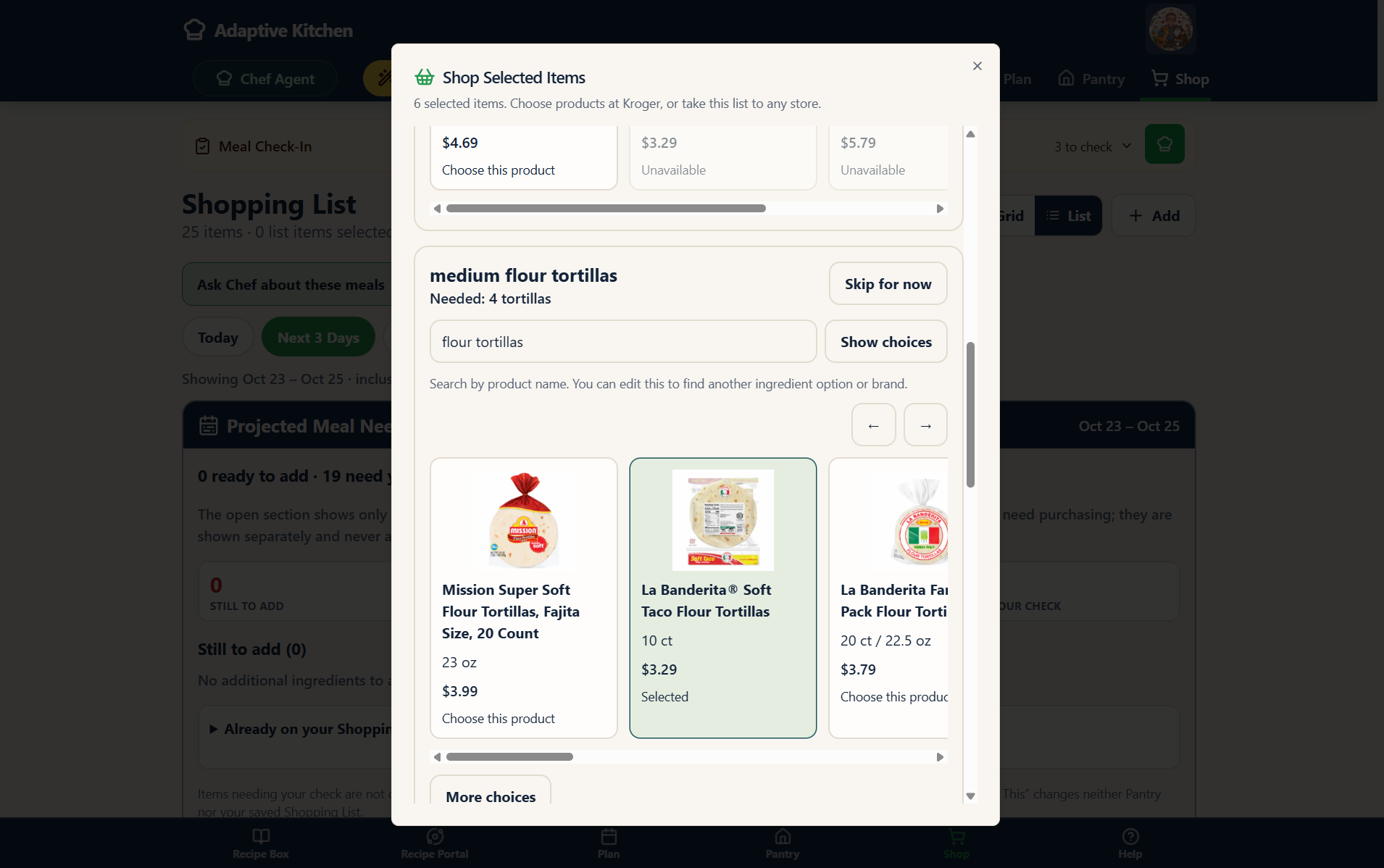
With Kroger, connect your account, choose a store and review product choices for the selected items. You choose the brand, package size and product, or skip an item for now. Send your chosen products to the Kroger cart, then complete checkout with Kroger.
Adding to a cart is not buying. Returning to Adaptive Kitchen keeps the trip pending until you record what was purchased. Continue shopping later without treating the groceries as Pantry stock.
Shopping elsewhere? Copy or email the list and use the same purchase-review options when you return. Kroger is the connected retailer currently described here; other stores do not need an account integration for you to use a list and record purchases.
 Enlarge screenshot ⤢
Choose products and quantities for your connected store. Availability and prices depend on the store.
Record what came home
One review. Three ways to start.
After shopping, open Record purchases. Use the receipt when you have it, or review the list by hand. A connected Kroger cart does not automatically provide Adaptive Kitchen with your purchase receipt.
Paste receipt text
Copy the itemized text from your receipt, paste it into the box, then choose Read Receipt Text to prepare the review.
Use receipt images
Upload a receipt photo or screenshot, or take a photo on a supported device. Review the extracted items rather than assuming every line was read perfectly.
Review your list by hand
Check what you actually bought and adjust the quantities yourself. Use this route when you do not have a receipt or prefer direct control.
Review which receipt items match your list. Keep additional food labeled as an Unplanned purchase when it was not on the list.
Record what you actually brought home, including useful package information when you know it.
Review each item’s Pantry category. Household or non-food items are kept out of food inventory. Add an omitted item in the same review if needed.
Save the reviewed purchases. Pantry updates and the completed trip reminder closes. Unpurchased needs remain for another trip.
More than you planned? Additional food can join Pantry even when it was not part of a planned meal. That stock can help with your next recipe or future plan. Buying less than the amount needed can leave a remaining shopping need.
Help that understands the page.
Open the green Chef Assistant button at the top of the app when you need help with Pantry, Shopping or the planner. Ask what a label means, how to use a control, or how the selected plan connects to shopping needs.
Speak or type a question, then listen to the answer or read quietly using your voice settings. You can stay in the page while getting help.
Good questions to start with
- What is projected, and what is already on my list?
- What does Check on hand mean?
- How do I record purchases from a receipt?
- Can I add Pantry items without a shopping trip?
- How does Meal tracking affect my plan?
Close the loop
Bring groceries back into the kitchen.
Confirmed food purchases update Pantry so the next recipe match, meal plan and Shopping calculation starts from better information. Scheduling a meal does not use that stock: the cooking confirmation updates eligible tracked amounts when you actually make it. Moving or removing an unmade meal releases its projected demand without deleting food you own.
One change can make the whole kitchen smarter.
Questions
Pantry & Shopping FAQ
Pantry and Shopping are designed to reduce guesswork without taking control away from you. Here is how the pieces fit together.
Do I have to use Pantry or Shopping?
No. They are optional and can be enabled separately. You can still use Recipe Box, Recipe Studio, the Meal Planner and Cook Mode without keeping a complete inventory. The additional checks follow the tools and tracking options you choose.
Can I add food directly to Pantry?
Yes. Type or speak items, paste receipt text, or use a receipt image. Review names, quantities and categories, then confirm. This direct entry does not need a Shopping List or an active shopping trip. For a quick change to an existing item, use its quantity controls or edit its details.
Do I have to measure every item exactly?
No. A bag, container or package can be a practical starting point. Add optional package details when you want more precise calculations. Unknown quantities may need a Check on hand decision before a planned amount can be treated as covered.
How are duplicate names handled?
Matching and suggestions from existing or previous entries help you reuse an item’s identity. Compatible shopping amounts can be combined, while uncertain amounts need review. Meaningful differences remain important: black beans and pinto beans are different foods, and a vague entry such as beans may need clarification.
What does Meal tracking control?
It determines which Pantry items are authoritative for meal-related stock coverage and deductions. Items you are not tracking are not automatically treated as confirmed shortages. This lets you maintain useful inventory without requiring precise meal calculations for every item.
Does scheduling a recipe remove ingredients from Pantry?
No. Scheduling predicts demand. Eligible tracked stock is updated through the cooking confirmation when you make the meal and review the actual servings. Moving or removing an unmade plan changes the projection without consuming food.
Are projected needs already on my Shopping List?
No. They are separate suggestions for the selected day or date range. The app considers tracked Pantry stock and appropriate quantities already on the actual Shopping List before identifying remaining needs. Review and add what you want to buy.
What happens when I choose I have this?
The item is acknowledged for the current preparation rather than added to Shopping or silently recorded as Pantry stock. Undo lets you reverse that decision. It does not permanently cover every future preparation of the same recipe.
Can I use frozen, canned or dried ingredients instead of fresh?
Sometimes. The app can flag a possible alternative for review, such as frozen vegetables, jarred garlic or dried herbs. The amount or method may differ, so the alternative is not automatically treated as an exact match. Use focused Chef help in the recipe to discuss whether it suits the dish.
Can Pantry help me choose something to cook?
Yes. What Can I Make starts with recipes available to you and Pantry information. Review any missing or uncertain ingredients, then choose whether to explore more ideas online. Recipe Studio can also discuss ideas based on ingredients you have, alongside your saved cooking preferences, without demanding exact quantities as the first step.
How do I start shopping?
Select the actual Shopping List items you want for the trip and choose Shop Now. If nothing is selected, select an item first. The shopping window includes Kroger and the options to copy or email your selected list. Projected needs must first be reviewed and added when you want them on the actual list.
Which retailer is connected?
Kroger is the connected shopping workflow described here. Connect your account, choose a store, review product options and select what to send to the cart. You still choose products and complete checkout with Kroger. For other stores, copy or email the list and record purchases when you return.
Does sending products to Kroger update Pantry?
No. A cart is not proof of purchase. The trip can stay pending while you shop or return later. After purchase, use receipt text, receipt images or a manual review to record what you bought, then confirm the Pantry update.
Can Adaptive Kitchen automatically download my Kroger receipt?
The current connection does not retrieve your completed purchase receipt. Copy and paste the itemized receipt text, use a photo or screenshot, or review your list by hand. Each route leads to a review before you confirm purchases.
What if I bought something extra or skipped an item?
Additional food can be recorded as an Unplanned purchase and assigned a Pantry category. If a line was omitted, add it within the same review. Items you did not buy remain on your Shopping List; a partial purchase may leave a remaining need.
Can I shop for household items too?
Yes. Add non-food items such as paper towels to your Shopping List. Review them as household or non-food purchases so they do not become food Pantry stock.
Will bulk deletion change my meal needs?
Deleting Pantry stock changes what is available for tracked meal calculations. Deleting actual Shopping List items removes those shopping intentions; valid projected needs can still appear above the empty list. Bulk deletion asks for confirmation and can be canceled before changes are applied.
Can a trusted helper assist with my kitchen?
Kitchen Connections provides help through the access you choose to grant. Sharing a recipe alone does not give someone access to your Pantry, Shopping List or calendar. Review helper permissions for the support you want.
One connected kitchen — with you in control.
Once recipes, plans, Pantry and Shopping work together, the next step is letting the people you trust participate without taking over.
Explore Kitchen Connections →Adaptive Kitchen. Cooking within reach.